Automatic zoom
Bring every click closer. Adjust the timing, framing, and easing in the editor.

Big ideas. Small recordings.
Show your agent exactly what you mean, or ask it to record the walkthrough for you.
macOS 15 or later · Try every feature except export
Context for the tools you already use.
 Claude Code
 Cursor
 Codex
Codex OpenCode
 Hermes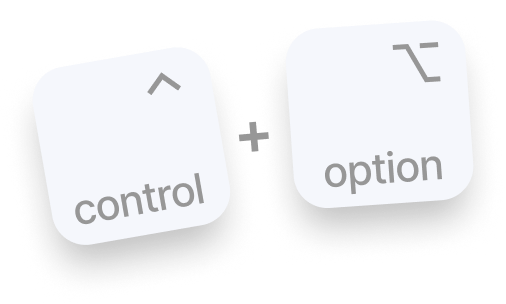
Act I — Building, debugging…
Hold two keys, speak your mind, and point to what matters. Kirocast captures your screen, transcribes your voice, and packages the context for your agent.
Start Talk Mode with Control + Option.
Explain the change. Point out the detail.
Give your agent the recording, transcript, and annotations together.
Act II — Time to ship.
Training, UI updates, support answers. Through Kirocast’s MCP connection, your agent can take over the screen and record the steps.
“Explain how bb works, for someone who's new and creating a new project.”
New UI. Everyone up to speed.
An agent walks through what changed“Create a UI update video in Kirocast: open the new sidebar, show where projects now live, then demonstrate search.”
An answer they can watch.
An agent records the steps to a solution“Create a support video in Kirocast: open Reports, choose a date range, then show how to export a CSV.”

start_recordingpause_recordingstop_recordingmove_mouseclickdragscrollpress_keytypecutset_zoomannotateset_stylenarrateread_rendered_frameopen_projectexportExample tool call
{ "name": "press_key", "arguments": { "key": "cmd+s" } }A selection of the tools available to your agent.
From your instructions to a recorded walkthrough. Your agent controls the mouse, uses the keyboard, and shapes the edit through Kirocast’s MCP tools.
Describe what to show, the steps to follow, and what you want to explain.
Your agent clicks, types, and moves through the walkthrough while Kirocast records.
See the result in Kirocast. Ask your agent to adjust the cut, zooms, or annotations until it feels right.
A good take is only the beginning. Give it the finish it deserves. Or let your agent do it for you.
Bring every click closer. Adjust the timing, framing, and easing in the editor.
Generate captions on your Mac, fine-tune the words, and export an SRT file.
Try a different cut. Keep the original and return to the edit you loved.
Choose a screen, window, or area. Add your mic and camera, then press Record. All in one bar.
Find the right setting with wallpapers, gradients, and your own images.
Circle a detail as you record. Turn that gesture into an editable highlight.
Hide sensitive details before you share. Your masks stay in the AI export too.
Keep the private bits private.
Sensitive information disappearing from view.Record, edit, transcribe, and export in one native macOS app.
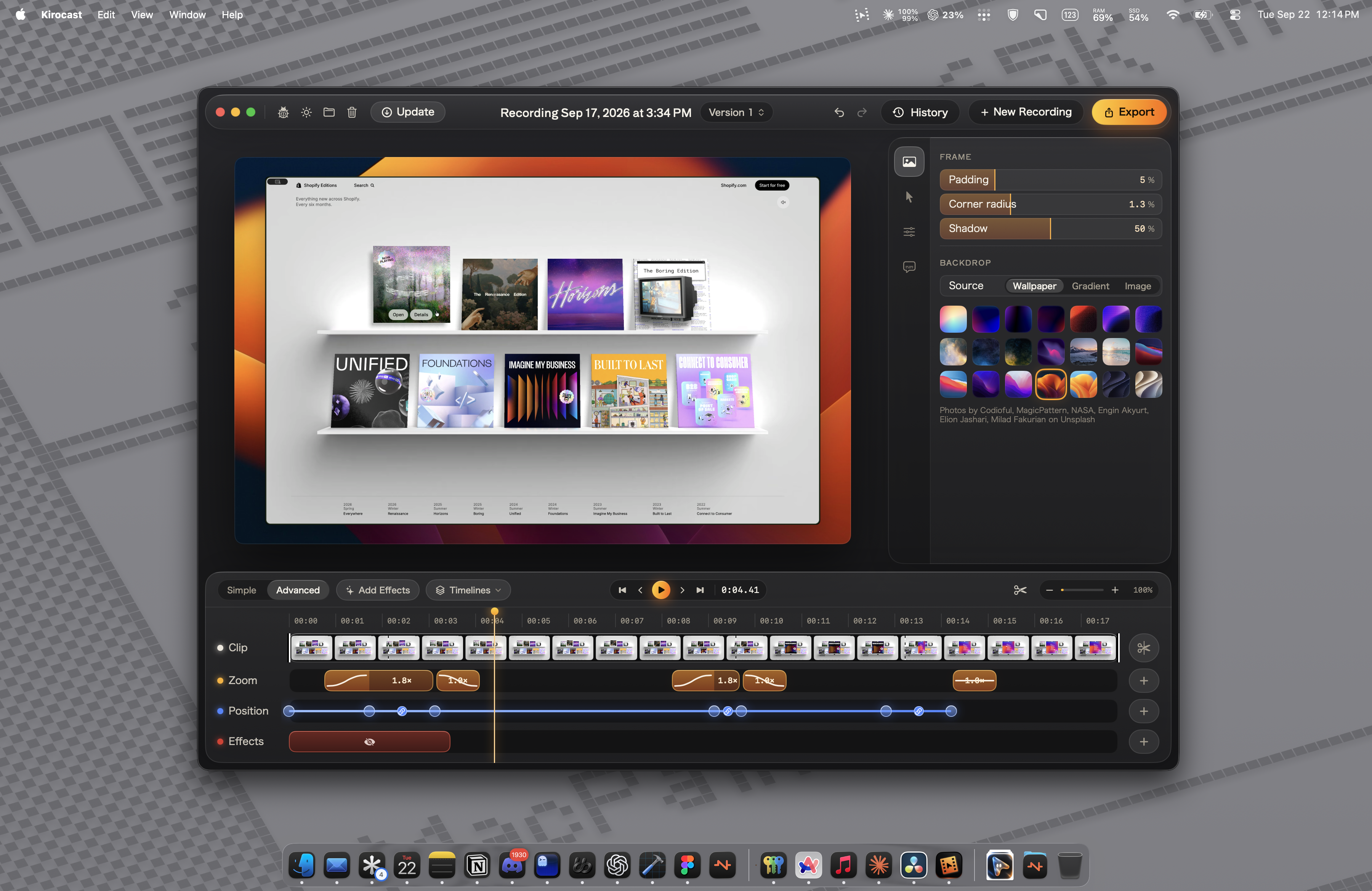
Parakeet transcribes your recording on your Mac. Your audio stays on your device during transcription. Edit the captions and export an SRT file.
Metal renders your backgrounds, zooms, and effects on the Mac’s GPU.
Written in Swift, with native windows, familiar controls, and keyboard shortcuts.
Apple silicon’s dedicated media engine handles video encoding, from your finished edit to a shareable file.
Built for Apple silicon. macOS 15 Sequoia or later.
Try risk-free, get a license when you're ready to export. One-time payment. No subscription. Unlimited access to Kirocast on your Mac
Kirocast for macOS1 key
$39 $49one-time payment
1 Mac per key.
Limited offer for early users
80 spots left before the price goes up
Secure checkout powered by Stripe.Prices are in USD, excluding VAT and may vary by location.Requires macOS 15 Sequoia or later.
In Japanese, 岐路 (きろ, kiro) means a fork in the road or a crossroads. It can also describe a turning point, a moment when you have to choose which path to take.
I started Kirocast because I felt I was at that crossroads. For me, nothing is more valuable than building my own company, listening to the people using my product, facing rejection, and growing after every conversation.
Kirocast is my everyday companion. It helps me work with agents, debug, share ideas, and automate videos. I’m building the tool I want by my side, and I hope you’ll enjoy working with it too.
If something feels off, please send me a message and I’ll do my best to help!
Everything else you might be wondering before your first recording.
Yes. Download Kirocast and use every feature for free - recording, auto-zoom, privacy masks, backgrounds, the editor. Export is the one thing a license unlocks, so you can see exactly what you would be paying for before you pay.
Kirocast prepares the recording alongside your transcript and annotation information. Paste the handoff into an agent that can read the exported files on your Mac, so it can inspect what happened and understand what you said.
Yes. Record your screen, edit the timeline, adjust zooms and backgrounds, add captions, and export a finished video with a license. The agent workflow is one way to use Kirocast.
No. Personal is a one-time payment with no automatic renewal. You get the Kirocast license, including all updates.
No. Kirocast licenses are personal and cannot be shared, resold, or transferred to another person or company.
No. Recording, editing, transcription, and export run on your Mac. You decide when and where to share the exported files.
The Personal license has a 14-day money-back guarantee.Read the refund policy.
Kirocast requires macOS 15 Sequoia or later. Download the app and try the workflow on your Mac before buying a license.
Your next good idea deserves a clear recording.
Download for macOSmacOS 15 or later · Export requires a license