Why Kirocast is a native Mac app, and what stays on your Mac
Native capture, on-device transcription, and files you can keep. A look at the foundations underneath Kirocast.
 Gabrielle2 min read
In this article
Built on Apple’s own frameworks
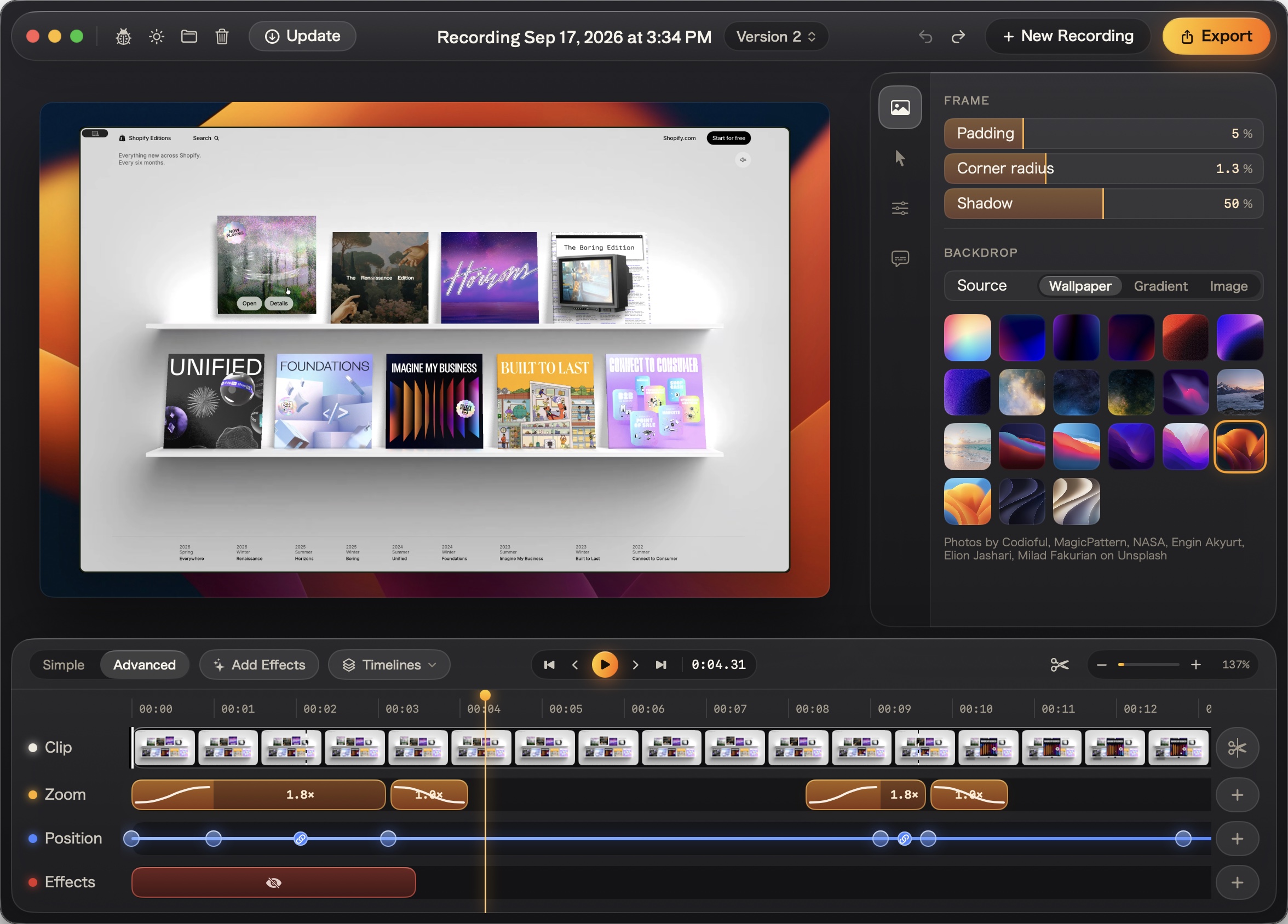
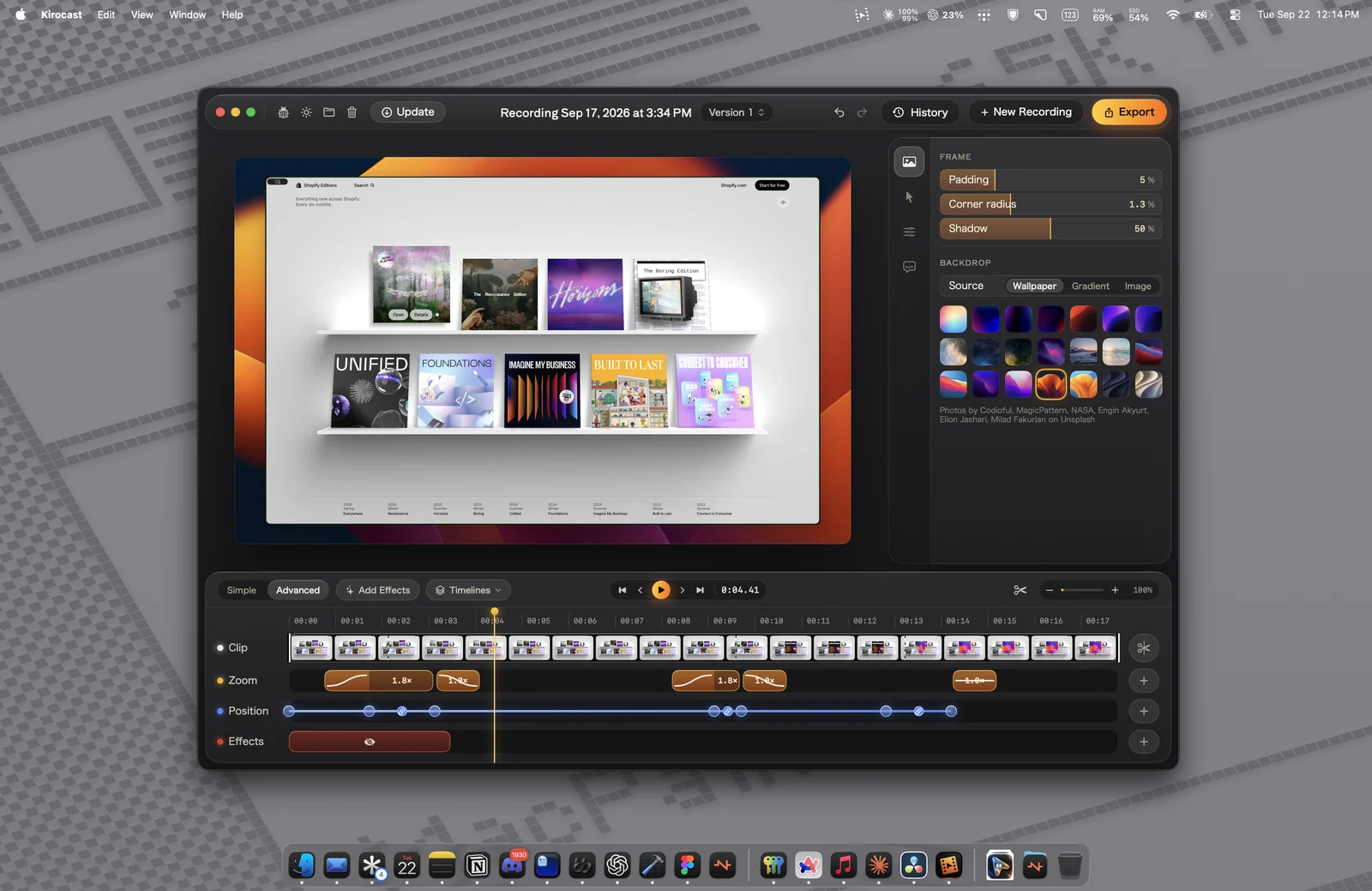
Kirocast is a native Mac app. ScreenCaptureKit handles capture, Metal supports the rendering, and Apple silicon encoding is part of the export pipeline. The interface uses SwiftUI and AppKit.
Those foundations are part of the product you use: a recording bar on your desktop, an editor for your footage, and export that produces a file you can take elsewhere. Kirocast requires macOS 15 or later.
What happens on your Mac
Capture, editing, transcription, and export happen on your Mac. The built-in transcription runs on-device. Recordings are standard files, and MP4 or GIF exports can go into the tools your team already uses.
That is useful for a product demo, a support reply, or an explanation attached to a ticket. You choose where the result goes. Privacy masks let you cover sensitive parts of the recording before you export it.
What changes when you connect an AI agent
Kirocast also connects to coding agents. Talk mode records the screen alongside your explanation, and Export for AI packages context for the agent you choose. The local recording workflow and the decision to share that context are separate steps.
When you pass a recording or its context to an external agent, that agent’s data handling applies. On-device capture does not make an external AI service local. The manual explains what each part of the workflow does.