
Kirocast manual
Everything you need to record, edit and export with Kirocast, and to let your agent do it for you.
Five minutes
Get started
- Install Kirocast
- Give required permissions
- Record your screen using the recording bar
- Review and edit in the editor by pressing the scissors
- Export your first video
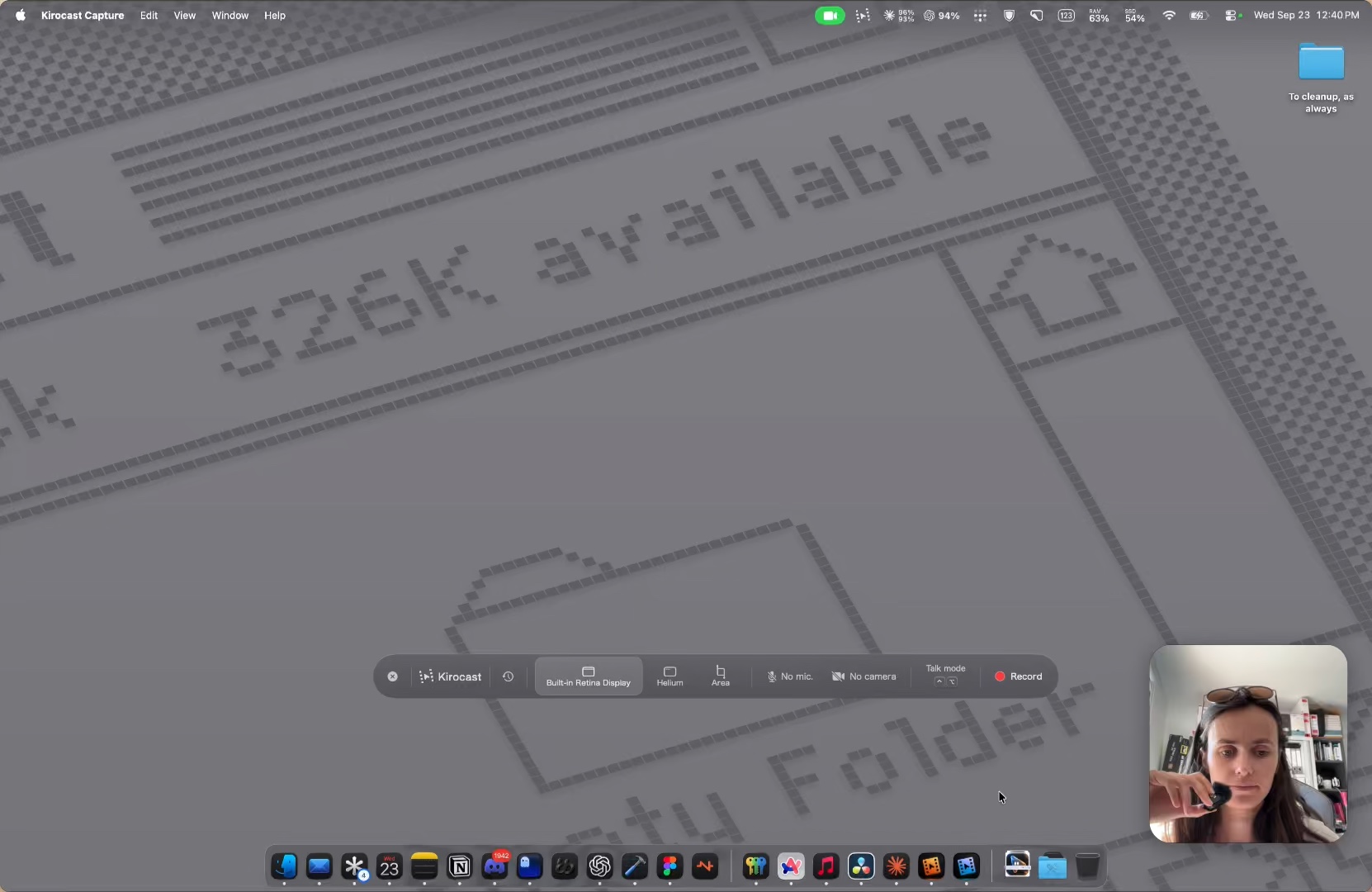
Start here
Install Kirocast, grant permissions, and learn the keys that matter.
Recording
Record a display, window or area, with your camera and voice.
Talk mode
Hold two keys, show your agent what you mean, and paste the prompt.
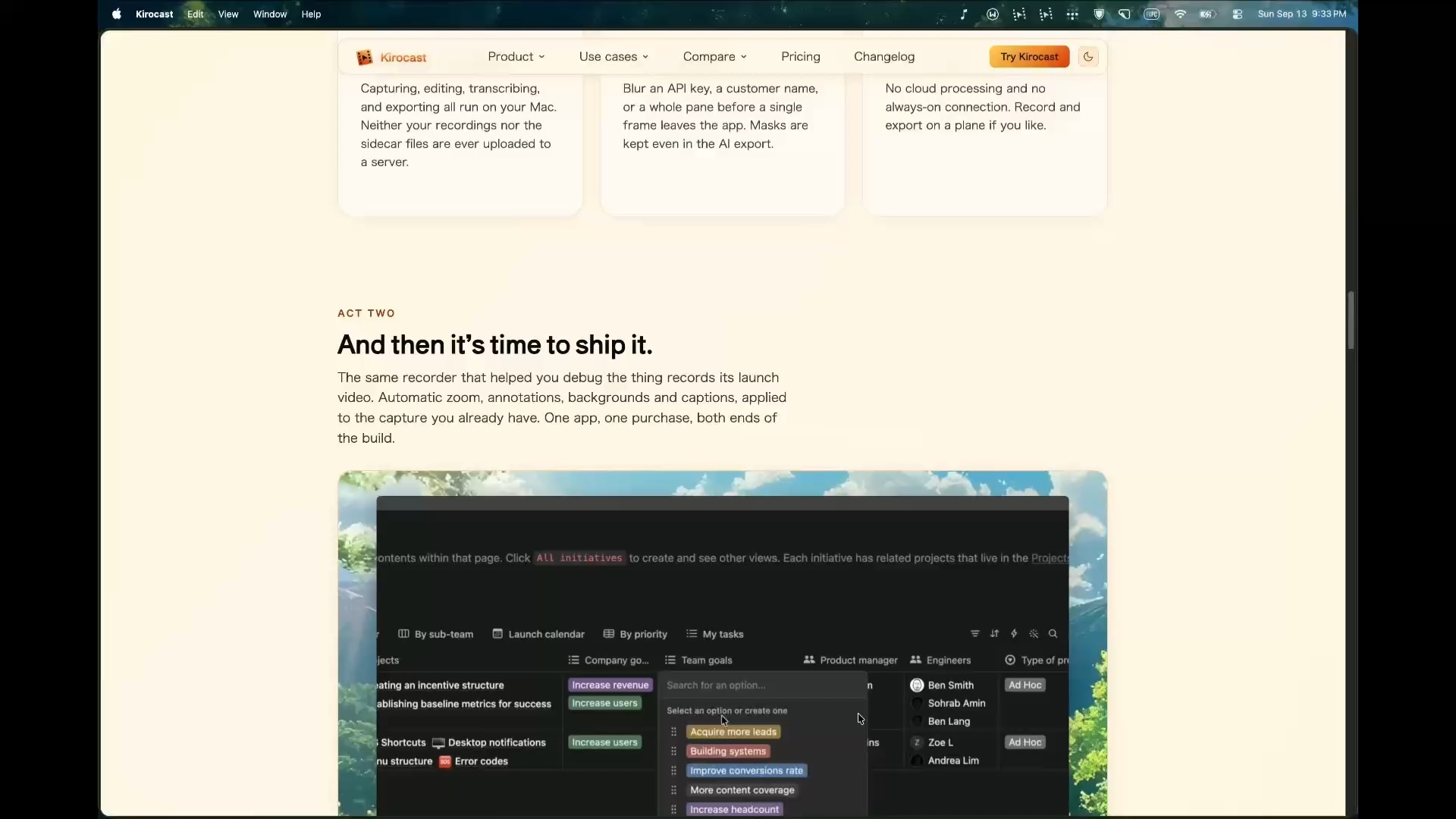
Editing
Trim, zoom, caption, narrate and style each recording.
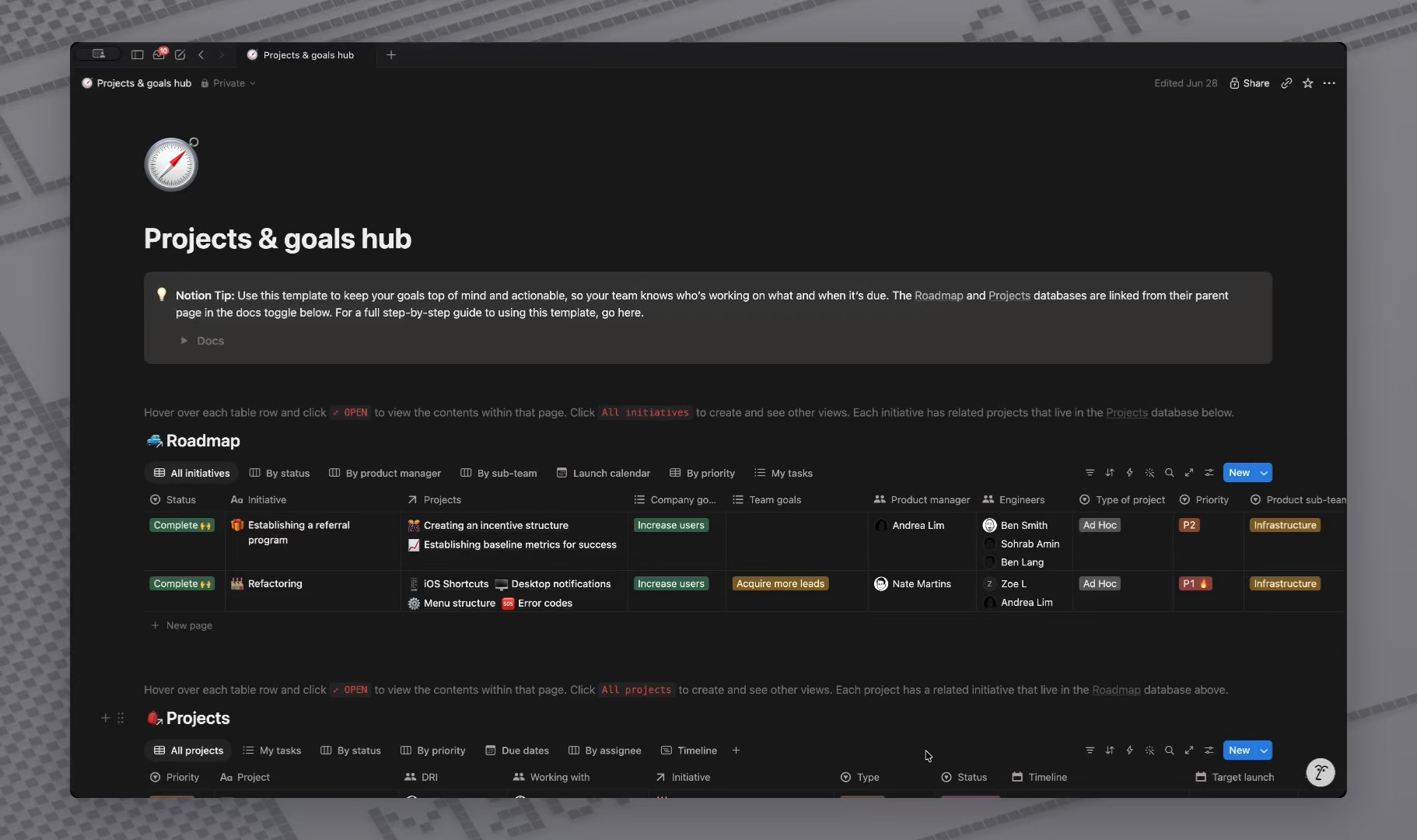
A tour of the editorFind your way around the timelines, the inspector and both modes.Zooms and Auto timelineRetime, re-aim or remove the zooms added at your clicks.Cuts and speedCut out the waits and speed up the slow parts.Frame and backdropFrame the video and set a wallpaper or colour behind it.CursorRestyle, resize, smooth or hide the pointer after recording.Mask, Smart Annotation and Tap TapBlur what is private, circle what matters, point where to tap.On-device captionsWrite captions on your Mac, fix them on the timeline, export SRT.Narration and ElevenLabs voicesTalk over the edit, or have an ElevenLabs voice read your script.VersionsKeep a short cut and a long cut of the same recording.
Exporting
Export for people, for models, or both.
Agents
Let Claude, Codex or any MCP client record, edit and export for you.
Connect Claude or CodexLet Claude or Codex record and edit for you, in one click.Connect any MCP clientPaste one config into Cursor, Zed or any MCP client.Let your agent make the videoBrief your agent and get back a finished, captioned demo.Allow and revoke agentsDecide which agents may drive Kirocast and spend voice credits.MCP tool referenceLook up what your agent can do before you write the brief.
Help
Fix a permission, report a bug, or move to a new Mac.