
| 1 | Install Kirocast | 1 min |
| 2 | Give required permissions | 1 min |
| 3 | Record your screen using the recording bar | 1 min |
| 4 | Review and edit in the editor by pressing the scissors | 1 min |
| 5 | Export your first video | 1 min |
You need a Mac on macOS 15 Sequoia or later. Kirocast lives in the menu bar: look for its icon at the top right of your screen.
1Install Kirocast
Download Kirocast, drag it into Applications and open it. A short welcome walks you through five pages: what Kirocast is, connecting your agent, Talk mode, permissions, and your license.
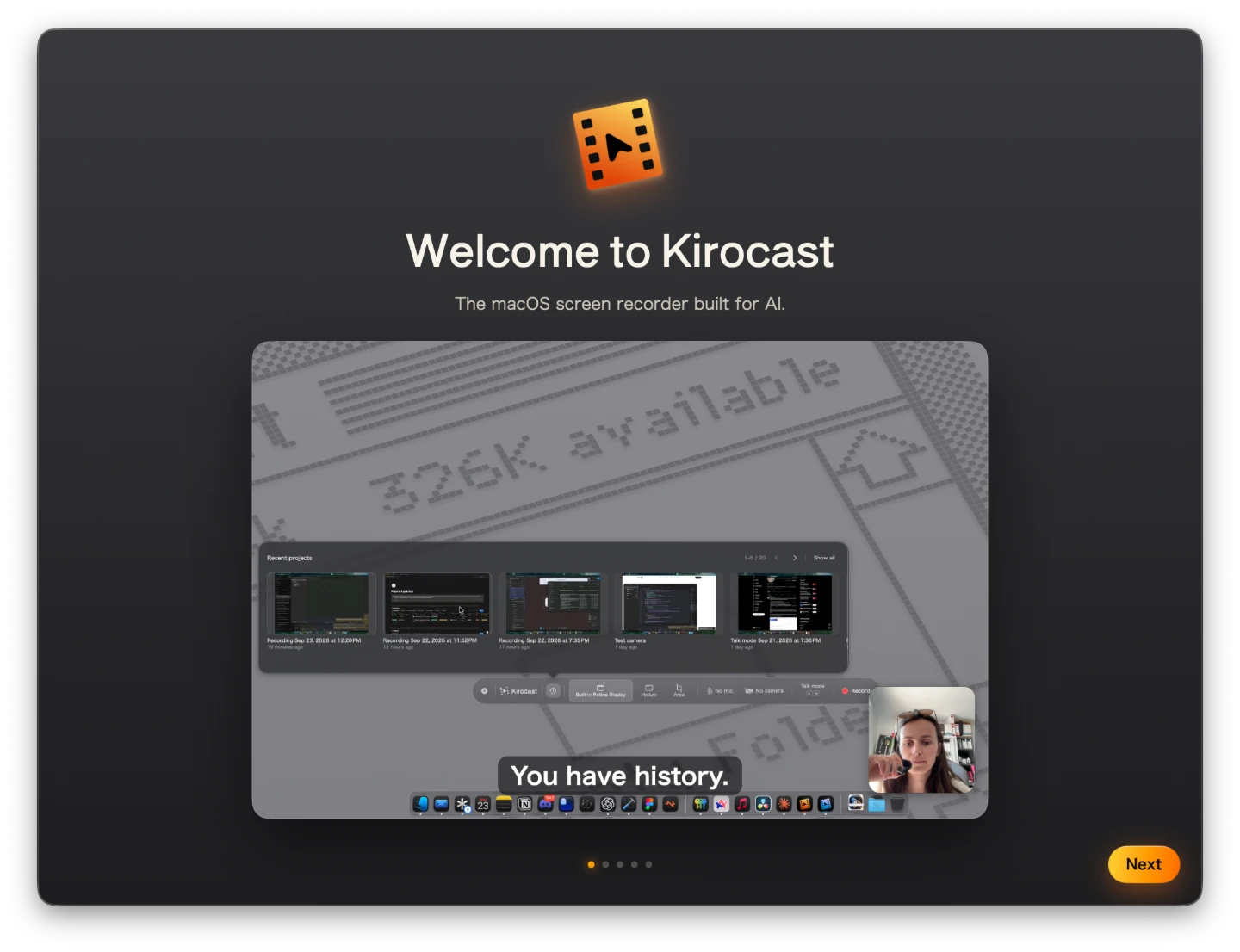
Only the permissions page needs you today; press Next through the others. Your agent can be connected later from Settings… › AI agents in the menu bar, and on the license page Skip for now takes you straight to recording.
2Give required permissions
Kirocast needs one permission to record: Screen Recording. On Get ready to record, choose Allow next to it. macOS asks whether Kirocast may record your screen: choose Open System Settings, switch Kirocast on, then choose Quit & Reopen. Kirocast opens again on the same page, ready to go.
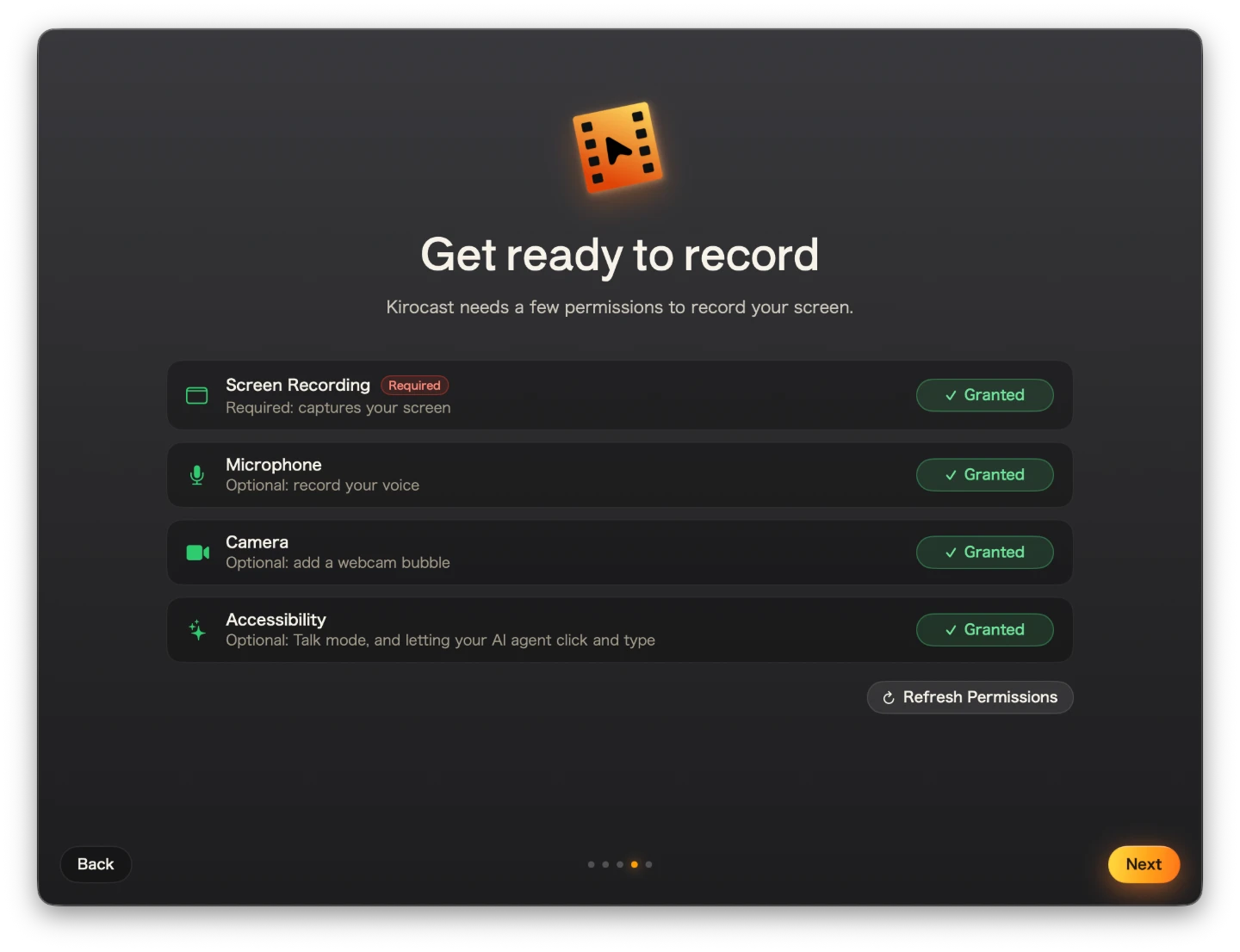
The other three are optional, and each one unlocks something specific:
| Permission | What it unlocks |
|---|---|
| Microphone | Your voice over the recording |
| Camera | A webcam bubble you can drag anywhere |
| Accessibility | Talk mode, shortcuts from any app, and letting your agent click and type |
Permissions covers each one in detail.
3Record your screen using the recording bar
Press ⌘⇧5 to open the recording bar. Choose Display or Window and press the red Record button, or choose Area and drag out the part to record.

Click through something for twenty seconds, then press stop on the small pill that replaces the bar. Kirocast zooms to each click, so click with intent.
4Review and edit in the editor by pressing the scissors
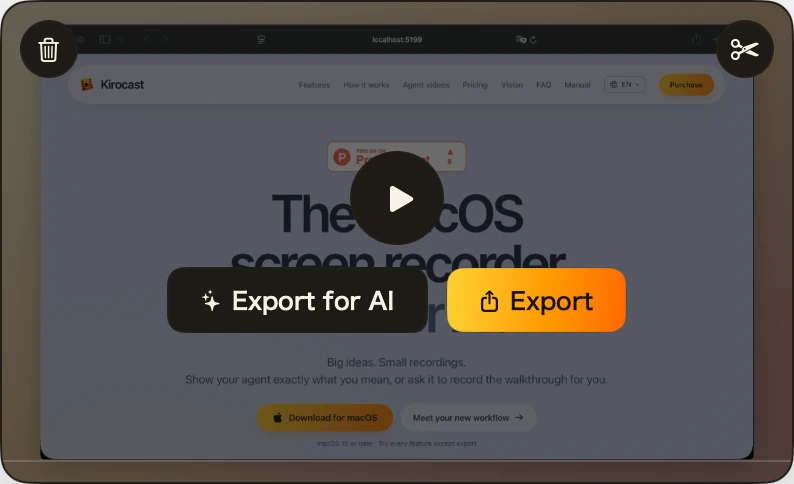
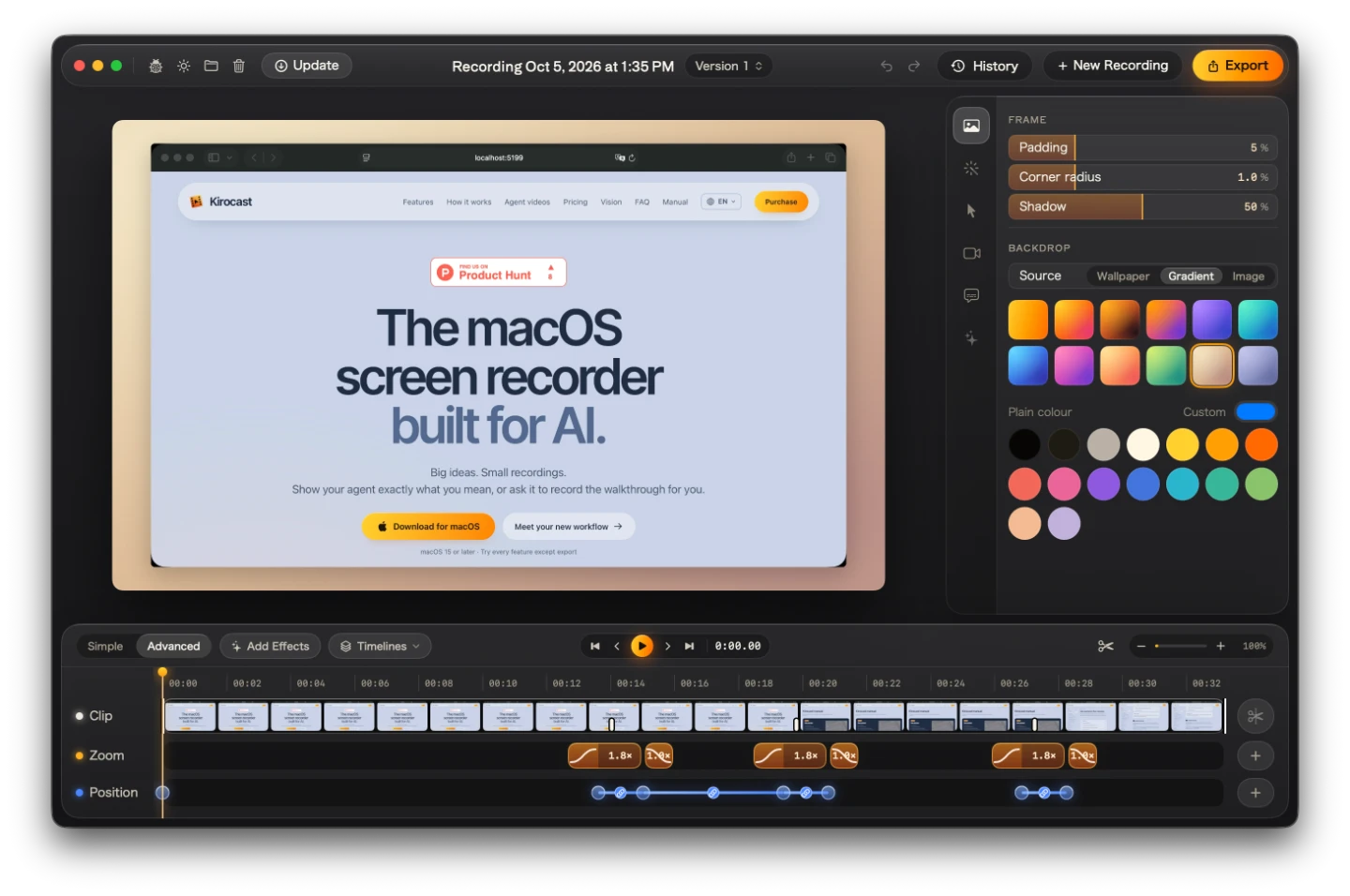
A preview card appears at the bottom right of your screen. Choose the scissors to open the editor: zooms already follow your clicks, and the frame, shadow and backdrop are already set.
5Export your first video
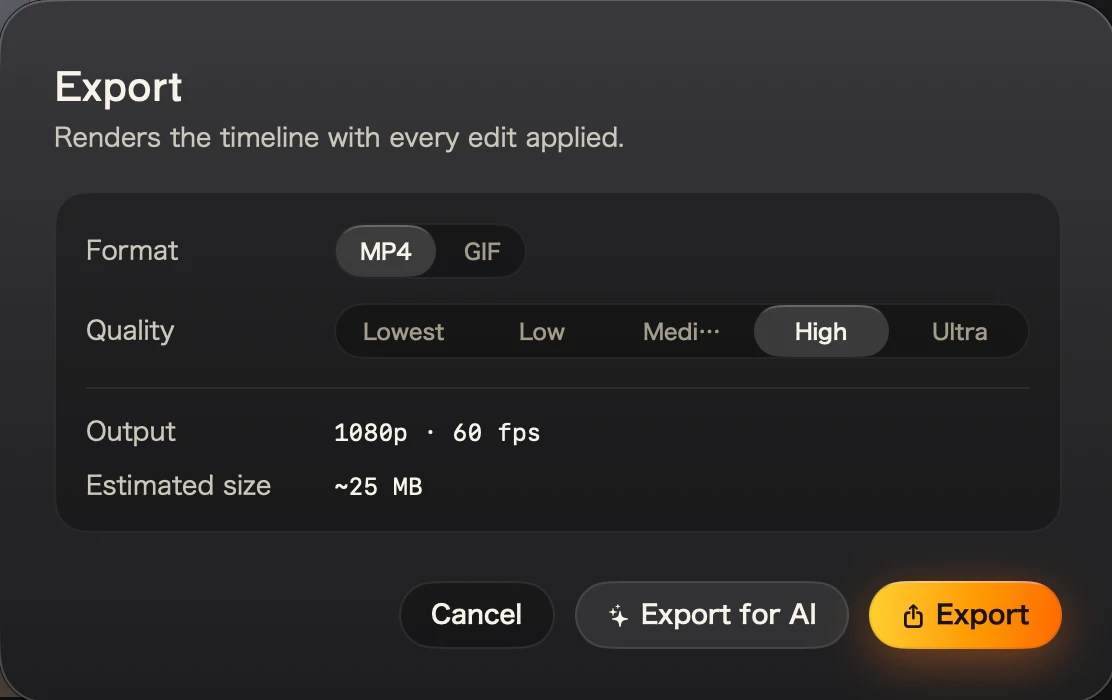
Choose Export, pick MP4 and High, and export. When it finishes, Show in Finder opens ~/Movies/Kirocast/Exports with your video selected, ready to drop into Slack, X or an email.
Record and edit as much as you like. The first export asks for your license key; paste it once on this Mac and every export after that is yours. Activate your license
Five keys to remember
With Accessibility allowed, they work from any app.
The full list is in Keyboard shortcuts.