
Open the bar
Press ⌘⇧5, or choose New recording… from the Kirocast menu bar icon. Press ⌘⇧5 again to put it away.
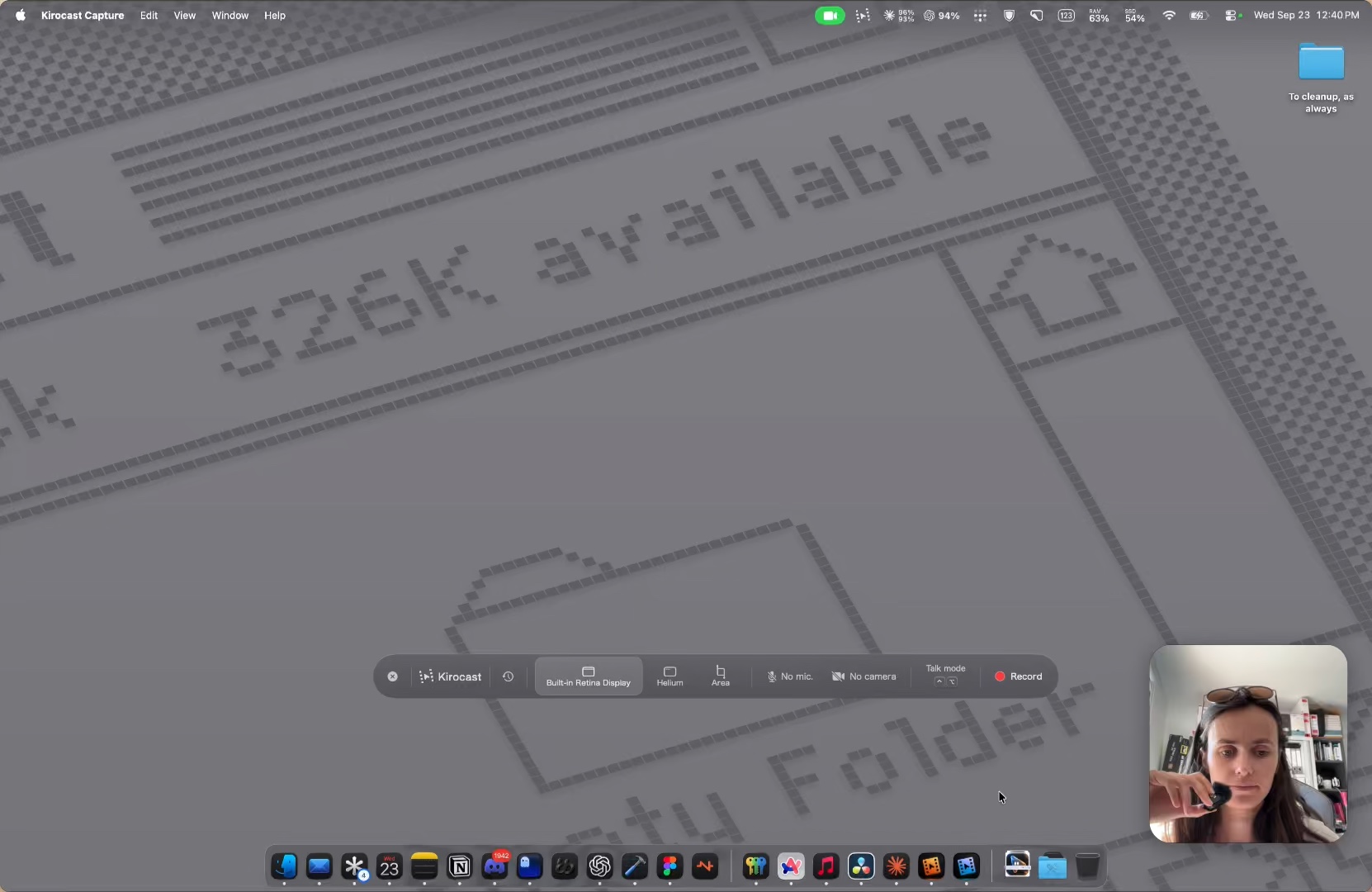
Display, window or area
| Source | What you get | Shortcut |
|---|---|---|
| Display | A whole screen. The bar names the display, so you know which one you’re about to record. | ⌥⌘3 records your main display right away |
| Window | One window, picked from a list of the windows you have open, grouped by app. | ⌥⌘4 opens the list; pick one, then Record |
| Area | A region you drag out. Ideal when one panel of a wide screen tells the story. | ⌥⌘5, then drag; recording starts as you let go |
Camera and microphone
Two pickers sit beside the sources. Choose a microphone to narrate as you go; Kirocast can transcribe it on your Mac. Choose a camera to add a webcam bubble. The camera is recorded on its own track, so you can resize it, move it or hide it in the editor later.
A screen on its own is already a complete take, so add these when the recording calls for them.
While you record
Press the red Record button. The bar shrinks to a small pill with a timer and its controls:
- Pause recording, which turns into Resume recording, to step away mid-take.
- Stop recording, to finish.
- Discard recording, to bin the take.
- Discard and restart, for a clean second attempt.
Kirocast zooms to each click when you review the take, so click on the things you want people to see.
When you stop
The take lands in a small card at the bottom right of your screen. Play it back, then choose:
- Export for a polished video, with zooms already applied. See Export MP4 and GIF.
- Export for AI for a video and a prompt to paste into your agent. See Export for AI.
- The scissors to open the editor.
- The bin to delete the take.
Every take is saved as a project in ~/Movies/Kirocast/Projects, and Open History (⌘Y) lists them all.