
Open the export sheet
Choose the Export button at the top right of the editor. The Export button on the card that appears when you stop recording skips the sheet and renders an MP4 at the quality you last picked. The first export asks for your license key; see Activate your license.
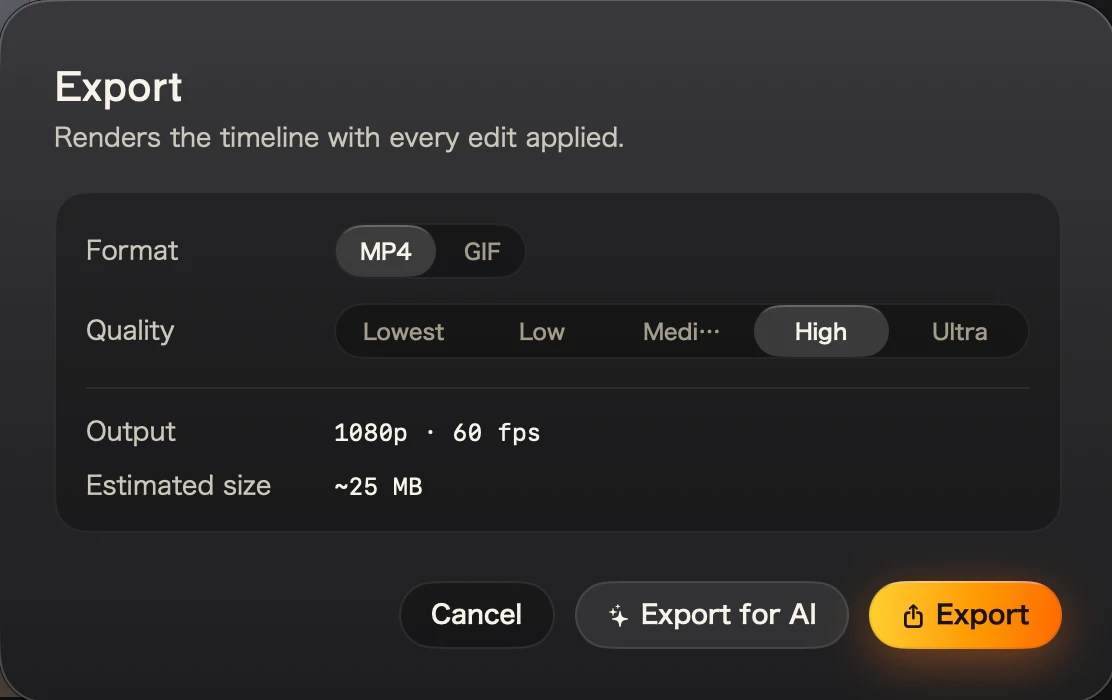
Format and quality
Choose MP4 or GIF, then a quality. Each step caps the resolution and frame rate, and keeps your recording’s own size when it’s already smaller.
| Quality | Up to | Good for |
|---|---|---|
| Lowest | 720p, 24 fps | Quick shares where size matters most |
| Low | 720p, 30 fps | Chat and email |
| Medium | 720p, 60 fps | Smooth motion at a small size |
| High | 1080p, 60 fps | Docs, help centers and social posts |
| Ultra | 1440p, 60 fps | Launch videos and large screens |
The table is for MP4; a GIF runs from 480 px wide at 10 fps (Lowest) to 1000 px at 24 fps (Ultra). The sheet shows the resolution and frame rate of your pick, and an estimated file size, before you commit.
Where it lands
Exports go to ~/Movies/Kirocast/Exports. When the sheet reads Exported (Export complete on the card), choose Show in Finder to see the file selected and ready to share.
Beside every export
Kirocast writes an .events.json file next to each video: every click, zoom and effect with its timing. When the recording has a transcript, a .transcript.json joins it. Hand either one to an agent and it can read what the video shows.
Making the video for an agent rather than a person? Export for AI renders a version sized for a model and copies a prompt to go with it.