
Add your voice
Open the recording bar with ⌘⇧5. The microphone button reads No mic. until you choose one. Click it and pick a device from the list; on a MacBook Pro, the built-in microphone sits at the top. The button then shows the device’s name.
To record in silence again, choose No microphone at the bottom of the list.
Both devices need their macOS permission. Permissions walks through Microphone and Camera.
Add your camera
Click No camera beside the microphone and pick a camera; the Mac’s built-in FaceTime camera comes first. A live bubble appears on your screen right away, so you can frame yourself before you press Record.
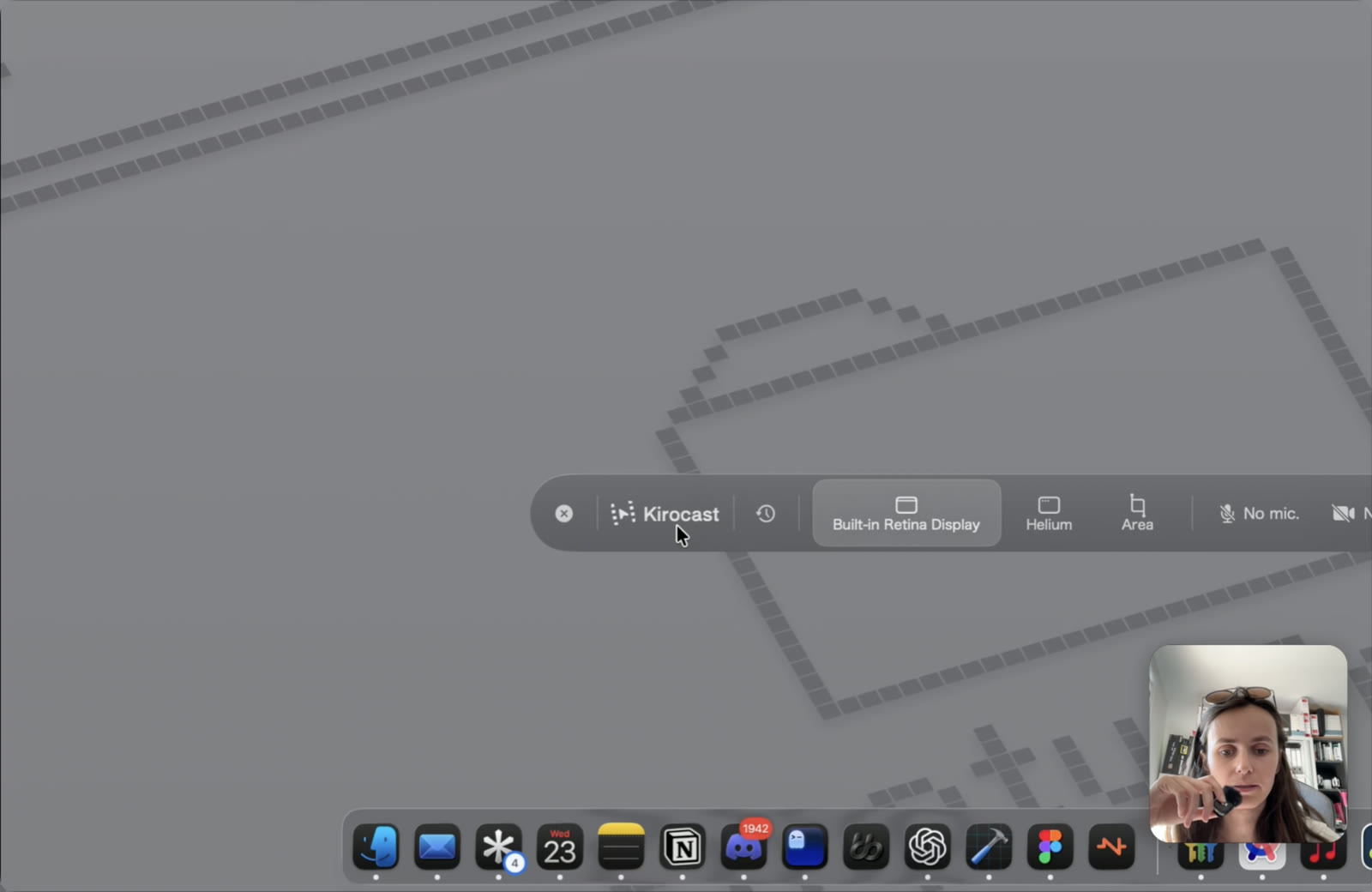
If the camera can’t start, the picker says why under the list. When access is missing, it reads: Kirocast needs camera access. Grant it in System Settings › Privacy & Security › Camera.
Choose No camera to turn it off; the bubble goes away and the camera light with it.
Place the bubble
The bubble first appears in the bottom-right corner of the screen that holds the recording bar. Drag it anywhere. Kirocast remembers the spot and brings the bubble back there next time.
The bubble shows you mirrored, the way you see yourself in a mirror, and the exported video shows it the same way.
The recording keeps the bubble where it sat when the recording started. You can still drag it on screen during the take, and the video keeps it in its starting spot. Your camera is recorded on its own track, so you can move it in the editor afterwards.
Adjust it in the editor
Open the Camera tab in the inspector, or click the Camera lane on the timeline. Every change shows in the preview and in your next export.
| Control | What it does |
|---|---|
| Show camera | Shows or hides the bubble, in the preview and the export. |
| Size | The bubble’s width as a share of the video’s width, from 8% to 50%. |
| Position | Nine spots, from Top left to Bottom right. Click one to move the bubble there. |
You can also drag the bubble in the preview. It snaps to the same nine spots.
Where they end up
- Export to MP4 carries your voice as the video’s sound, and the bubble where you placed it. See Export MP4 and GIF.
- Export for AI keeps the frame for your screen. Your words go into the transcript, where a model reads them word for word. See Export for AI.
- The Captions tab turns what you said into captions, transcribed on your Mac. See On-device captions.
Recorded without a microphone? You can add your voice afterwards, over the finished video. See Narration and ElevenLabs voices.