
Generate captions
- Open the Captions tab in the inspector.
- Leave the language on Auto-detect, or pick the one you spoke from the list of 25.
- Choose Generate Captions.
The first time, Kirocast asks to download the caption model, about 600 MB, once: choose Download and Generate. The pane shows the download and the captions as two progress bars, with Cancel below them. From then on, captions start straight away.
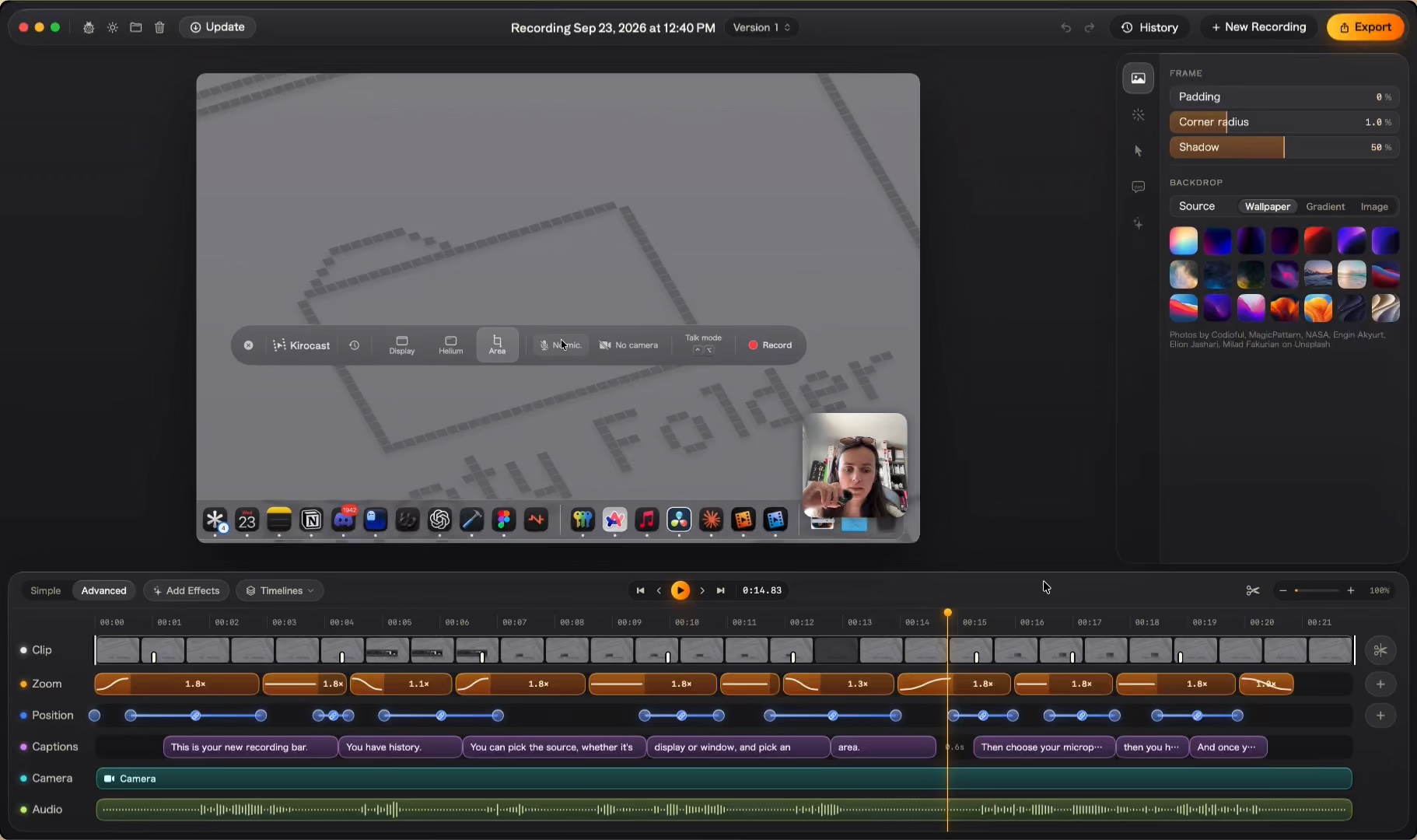
The captions appear on the Captions row of the timeline, one block per caption.
Edit a caption
Click a block to open it in the inspector. Type in the text field to reword it; the caption keeps its timing. Below the text:
- Split at playhead cuts the caption the playhead is in, in two.
- Merge with next joins it with the one that follows.
- Delete removes it. ⌫ does the same on a selected block.
- Words lists each word with its time; click one to move the playhead there.
On the timeline, drag either edge of a block to retime it. It snaps to word boundaries and to the next caption; hold ⌥ to place it freely. Drag the block itself to move it. To add a caption, press + at the end of the row for one at the playhead, or hover an empty stretch of the row and click.
⌘Z undoes any caption edit. Each version keeps its own captions.
Show them in the video
Show captions burns them into the preview and the export. Size scales them from 50% to 150%.
To write them again from the audio, choose Regenerate. Kirocast asks first, because the new captions replace the current ones, including any text you edited and any edge you retimed.
Export SRT
Choose Export SRT and pick where to save. The file takes the project’s name, and its timings follow your cuts, so it lines up with the video you export. Upload it beside the video anywhere that takes subtitle files.
Recordings without sound
When a recording has no audio, the Captions tab says so and offers two ways in:
- Add Captions places a caption at the playhead and puts your cursor in its text. Type it, move the playhead, and use Add at playhead for the next one.
- Record a narration in the Audio tab, on your microphone or in an ElevenLabs voice, and the captions are written from it. See Narration and ElevenLabs voices.
The caption model
Captions are written with the Parakeet speech model, on your Mac. Your audio stays on your Mac. The same model transcribes Talk mode takes and Export for AI.
To reclaim the space, open Settings › Voice and choose Delete model under Transcription. It frees about 460 MB and keeps your current captions; the next captions download the model again.