
Open History
Three ways in, all to the same window:
- Choose Open History (⌘Y) from the Kirocast menu bar icon.
- In the editor, click History in the toolbar, beside New Recording. Playback pauses and the editor stays open behind it.
- On the recording bar, click the clock to see your recent projects, then Show all.
Browse your recordings
The sidebar offers two views:
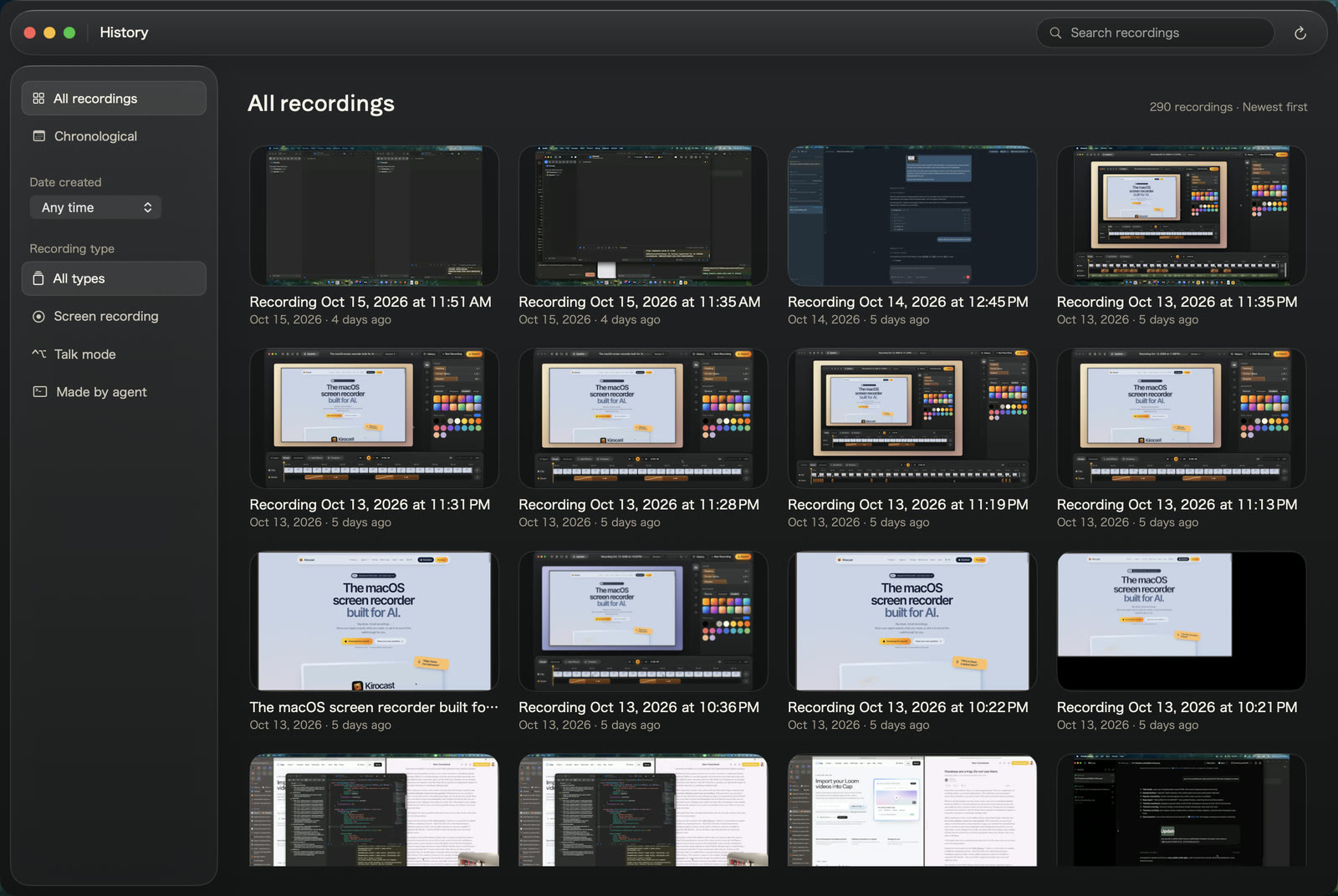
- All recordings: a grid of thumbnails, newest first.
- Chronological: the same recordings grouped by day, with Today and Yesterday at the top.
Each card shows the first frame, the project’s name and the date it was made. Hover a card to see the full date and time.
History refreshes each time you bring it forward. The refresh button beside the search field reloads it on demand.
Filter and search
| Filter | Choices |
|---|---|
| Date created | Any time, Today, Last 7 days, Last 30 days, or Custom range with a From and a To date |
| Recording type | All types, Screen recording, Talk mode, or Made by agent |
| Search recordings | Matches project names, in any letter case |
The three combine: Talk mode and Last 7 days lists this week’s Talk mode takes. The count above the grid updates as you go. Clear filters brings everything back.
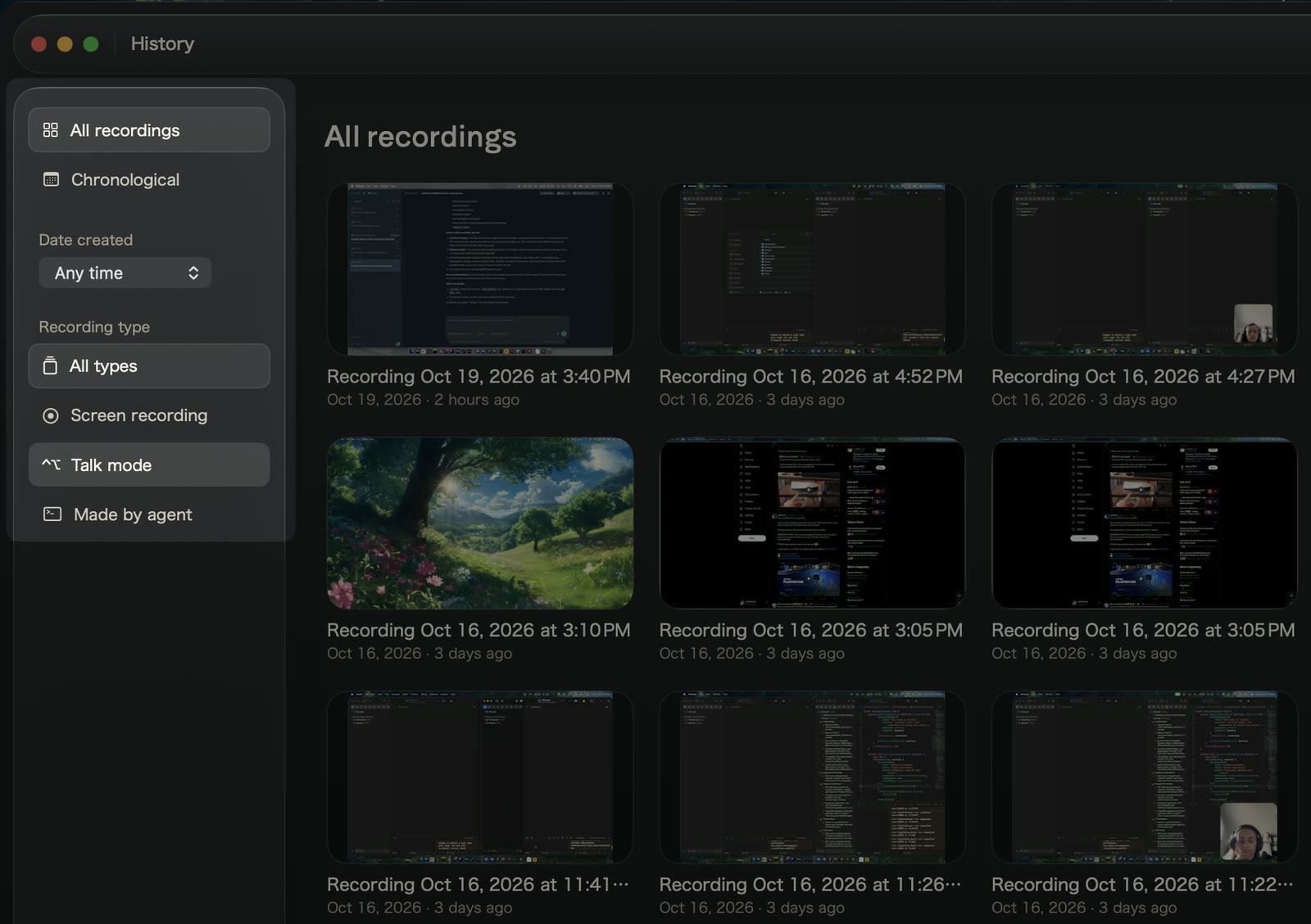
Talk mode lists takes made by holding ⌃ ⌥. Made by agent lists recordings an agent started over MCP. Screen recording lists the rest, including most recordings made with earlier versions of Kirocast.
Open and rename a project
Click a card to open the project in the editor. Kirocast saves the project you were editing first, so nothing is lost on the way.
New projects are named after the moment they were made: Recording followed by the date and time, or Talk mode followed by the date and time for a Talk mode take. To give one a better name, double-click its name in the editor’s title bar, type, and press ↩. The project’s package on disk takes the new name too, and History shows it.
A project can hold several edits of the same take. See Versions.
Where projects live
History lists the .kirocast projects in ~/Movies/Kirocast/Projects. Each one is a single package holding the recording, your camera track when you used one, and every edit.
To open a project kept in another folder, choose Open Project… (⌘O) from the menu bar icon. Open Last Project opens the project in Projects you changed most recently.