
What each one unlocks
| Permission | What it unlocks |
|---|---|
| Screen Recording | Capturing your screen. Every recording starts here. |
| Microphone | Your voice over the recording, transcribed on your Mac. |
| Camera | A webcam bubble, recorded as its own track so you can move or resize it later. |
| Accessibility | Talk mode, recording shortcuts from any app, naming what you circle, and letting your agent click and type. |
All four live on Get ready to record, the fourth page of the welcome. Each row shows Granted once it’s on. Recordings, transcripts and exports stay on your Mac.
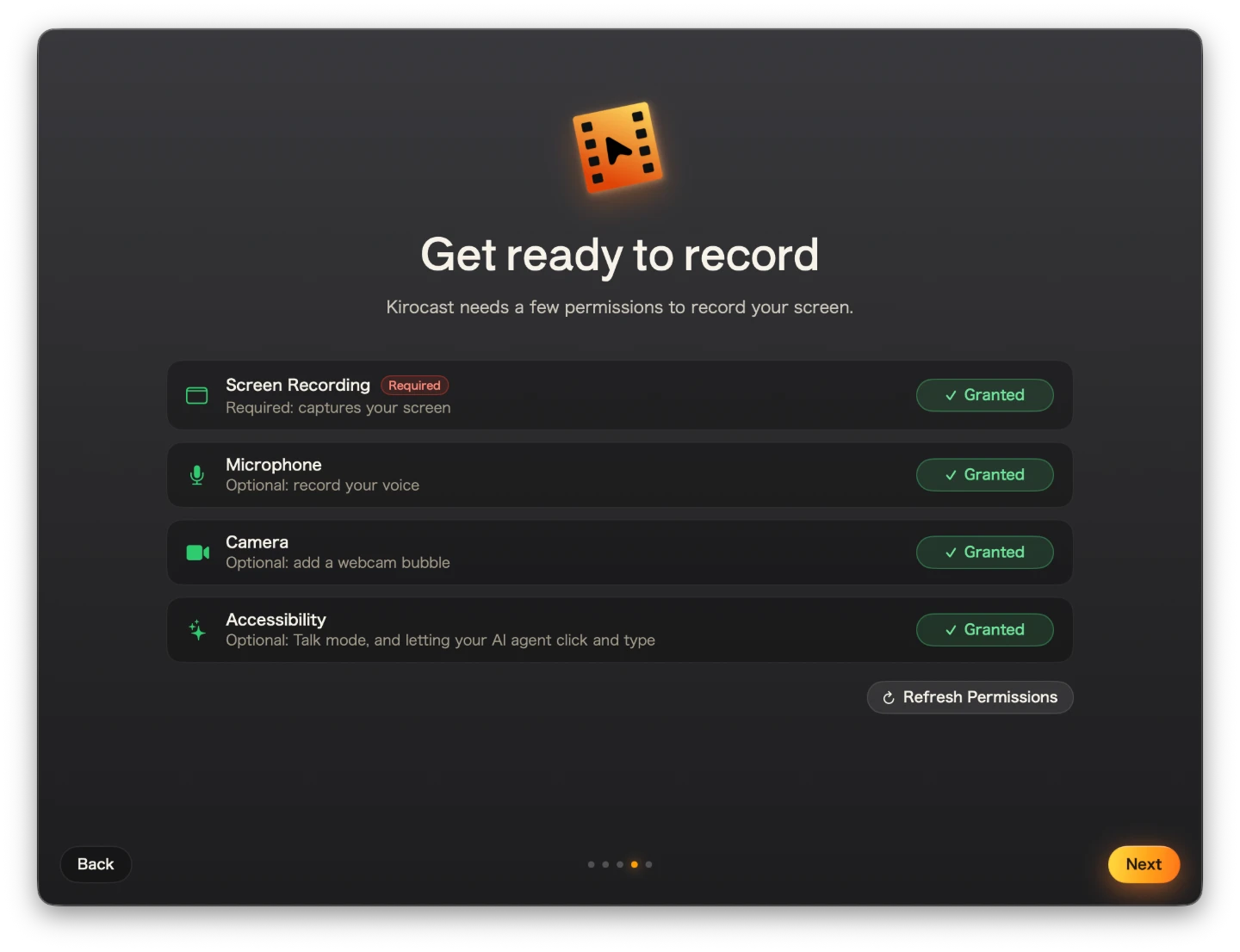
Screen Recording
- Choose Allow next to Screen Recording. macOS asks whether Kirocast may record your screen.
- Choose Open System Settings in that prompt and switch Kirocast on.
- macOS offers Quit & Reopen. Choose it, and Kirocast opens again on the same page.
If you closed the macOS prompt, the button now reads Open Settings. It opens the Screen Recording pane with a small Kirocast guide just below the window. When Kirocast is missing from the list, drag the icon from the guide into it, then switch it on.
Accessibility
Accessibility works the same way: Allow, then switch Kirocast on in System Settings. If you came through Open Settings, Kirocast notices the moment it’s on, closes the guide and comes back to the front.
Now and then macOS needs a restart to finish the grant. The row then offers Relaunch; choose it and Kirocast restarts with Accessibility live. If the row still asks after a relaunch, switch Kirocast off and on again in System Settings.
Microphone and Camera
Choose Allow and answer the standard macOS prompt. Both apply straight away. Pick which microphone and camera to use from the recording bar each time you record.
Changing them later
Choose Show Onboarding from the Kirocast menu bar icon, then Next until the permissions page, or open System Settings → Privacy & Security and find Kirocast under the permission you want.
Talk mode tells you when it needs Accessibility: choose Talk Mode… in the menu bar, and its alert offers Open System Settings. Talk mode covers the rest.