
Restyle the pointer
Open the inspector’s Effects tab. Under Cursor:
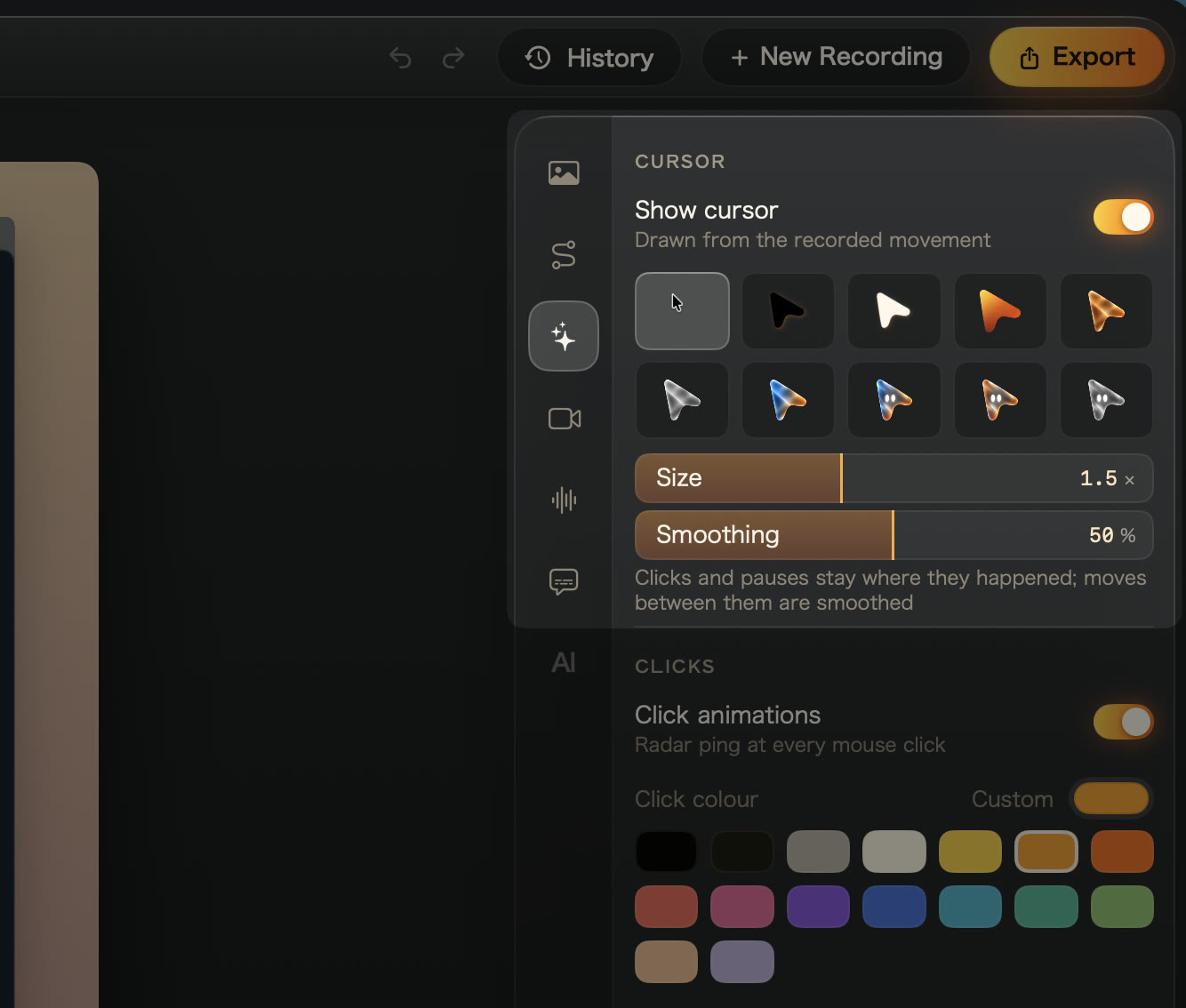
- Show cursor hides or shows the pointer across the whole video.
- Pick a style: System, or one of Kirocast’s arrows such as Ink, Paper, Amber or Frosted mono. Text, link and resize cursors keep their recorded shape, so viewers still see what the pointer meant.
- Set Size from 0.5× to 3×. It starts at 1.5×, which reads well in a scaled-down video.
Recordings made before this feature have the pointer in the video itself; the tab says so.
Smooth the movement
Raise Smoothing to turn jittery hand movement into one eased, curved move. Clicks and pauses stay exactly where they happened. At zero, the pointer plays every recorded movement.
Click the arrow beside a slider to reset it.
Colour the clicks
Under Clicks, Click animations draws a ring at every click. Pick a Click colour to match your brand; until you do, left clicks are orange and right clicks blue. Set the Annotation colour for every Smart Annotation just below.
Your agent can set all of this with set_style. See the MCP tool reference.