
Open the Audio tab
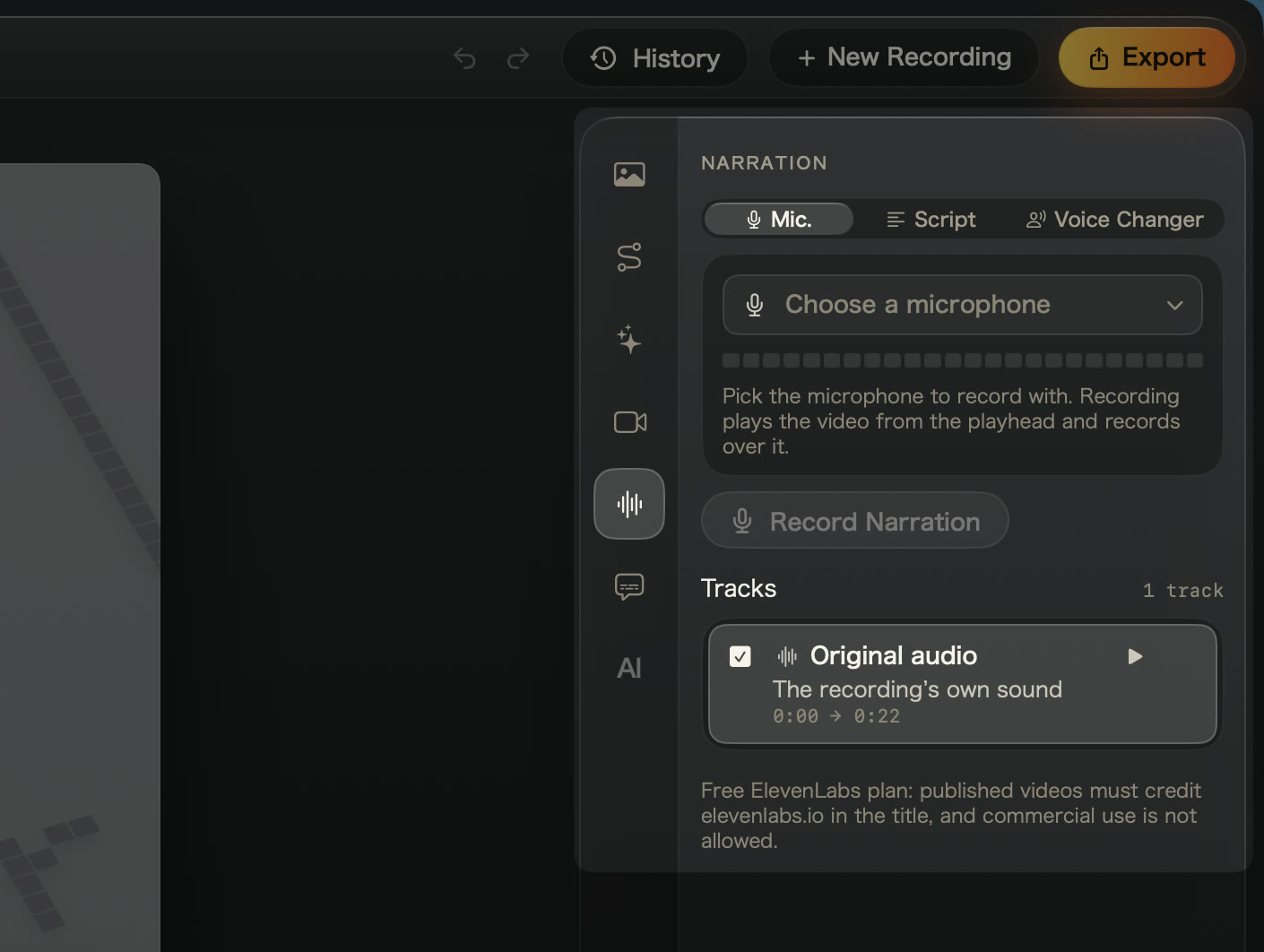
Select the waveform on the inspector rail. Under Narration, pick where the voice comes from:
| Choice | Use it to |
|---|---|
| Mic. | Speak over the video while it plays. |
| Script | Have an ElevenLabs voice read what you write. |
| Voice Changer | Say what is already heard in another voice, on the same timing. |
Record your voice
- Pick a microphone. The level meter lights up once it listens.
- Move the playhead to where your voice should start.
- Choose Record Narration. The video plays and Kirocast records over it, with the recording’s own sound muted.
| Control | What it does |
|---|---|
| Pause / Resume | Holds the video and the take together. Space does the same. |
| Stop | Keeps the take. |
| Bin | Throws the take away. |
| Start over | Rewinds and records again. |
The take goes on top of the tracks. Choose Generate Captions on the Captions tab to write captions from it. See On-device captions.
Connect ElevenLabs
Script and Voice Changer use your own ElevenLabs account and credits.
- Choose Connect ElevenLabs…. Settings › Voice opens.
- Open API keys on elevenlabs.io and create a key named Kirocast.
- Allow Text to Speech, Speech to Speech, Voices: Read and User: Read.
- Paste the key and choose Connect.
The Voice pane shows your plan and credits left, and sets the default Voice and Model. Use Replace key or Disconnect there; your takes stay in their projects.
The key stays in your Mac’s Keychain. Scripts go to ElevenLabs to be spoken. A recording’s audio leaves your Mac only when you use the Voice Changer on it.
On a free ElevenLabs plan, credit elevenlabs.io in the title of published videos; commercial use needs a paid plan.
Have a script read
- Choose Script, then a voice. The play button plays its free sample.
- Write the script. On a recording with speech, it starts as the transcript, ready to correct. The expand button opens a larger editor.
- Set Start to 0:00 or the playhead.
- Choose Generate Narration. The line below shows the cost against your credits, for example ElevenLabs usage: 227/9,145 credits.
The new take plays alone, and each script line becomes one caption. Captions you edited by hand stay, with an offer to rewrite them from the new voice.
Pace a script to the captions
When the version already has captions, the script starts one line per caption and Pace to captions is on. Each line then starts where its caption does; a long line nudges the next one later.
Use it to swap your own voice for a studio one: fix the captions’ wording, then generate.
Change the voice
Choose Voice Changer, pick a voice, and choose Generate Voice. ElevenLabs re-says what is heard, keeping your timing, pauses and emphasis, and the captions stay in sync.
It costs about 1,000 credits a minute and needs the Speech to Speech permission on your key.
Switch between takes
A project keeps every take. Each version lists its own Tracks, with the recording’s sound as Original audio.
- Tick a track to hear it. Where tracks overlap, the top one plays; drag lanes on the timeline to reorder.
- Play an unticked take to audition it alone.
- Open ⋯ to Move Up, Move Down, Duplicate Track or Delete Track. ⌘Z brings a track back.
- Choose Generate Again… to re-read an ElevenLabs take. Kirocast shows the cost first.
Captions written from the audio follow the ticked tracks. See Versions.
Move and trim phrases
A take’s Audio lane splits into phrases at its pauses. Drag a phrase to move it, drag an edge to trim or restore words, push an edge onto the next phrase to join them, split with the scissors, or press ⌫ to delete. Reset Track puts every phrase back.
Keep takes in sync
- Narrate last. If you cut or change speed afterwards, Kirocast flags the take: Generate Again remakes it on the new edit, Keep leaves it.
- Watch the end. Kirocast warns when a take runs past the video, so you can shorten the script or start it earlier.
- Let your agent narrate. Turn on ElevenLabs for an agent in Settings. See Allow and revoke agents.