
Before your first take
Talk mode records your screen like any take, and uses two more permissions: Accessibility, which arms the keys from any app, and Microphone, for your voice. If Accessibility is missing, choose Talk Mode… from the Kirocast menu bar icon and it takes you to the right place. Permissions walks through both.
Take one, in four beats
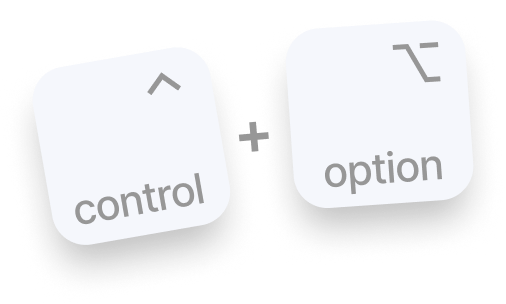
1 Hold
Press and hold ⌃ ⌥. Kirocast starts recording the display under your pointer, and a small orange circle appears beside it. The circle fills once the recording is running.
2 Talk
Say what you see and what you want. The circle swells as you speak. Click through the app as you normally would: while you hold, every click is an ordinary click.
3 Highlight
Circle the thing you mean, once. It becomes an annotation in the export, named after what’s under it, such as the label of the button you circled. Your pointer leaves a fading trail and each click a fading ring; they guide you on screen and stay out of the recording.
4 Release
Let go. The prompt is on your clipboard at that instant, and a card confirms it: Prompt copied to clipboard.
Paste it into your agent
Press ⌘V in Claude Code, Cursor, Codex, or any chat window. The prompt names three files:
- The transcript: your words, transcribed on your Mac.
- The recording: a small video sized for a model to read.
- The events file: every click with its timing, and each thing you circled with the name of the element under it.
The files finish writing a few seconds after you let go. The prompt tells your agent so, and the card shows progress while it renders. Choose Copy on the card to put the prompt back on your clipboard, or Done to put the card away; the export carries on either way.
The first take asks to download the speech model, about 600 MB, once. It runs on your Mac from then on. Decline it with Export Without It and your agent works from the video and the events file.
Where the files go
Each take writes TalkMode_<time>.mp4 with its .transcript.json and .events.json into ~/Movies/Kirocast/Exports. The project itself is saved like any recording and appears in History as Talk mode with its date, ready to open in the editor.
Talk mode takes export with your license, like any recording. Without one, the card offers Activate License. See Activate your license.
Takes that land
- Say what you expected, then show what happened. The transcript and the clicks line up in time, so your agent reads them as one story.
- Circle the exact element. A circled button arrives named, which gives your agent a selector-sized clue.
- Keep it short. Ten to thirty seconds covers most bugs and design notes.
For the whole story, including why the video is 1536 px at 5 fps, see the Talk mode page.