
Open the Frame tab
Click Frame, the first tab on the inspector’s rail. If an element on the timeline is selected, the inspector shows its settings first; click Done or press Esc to come back.
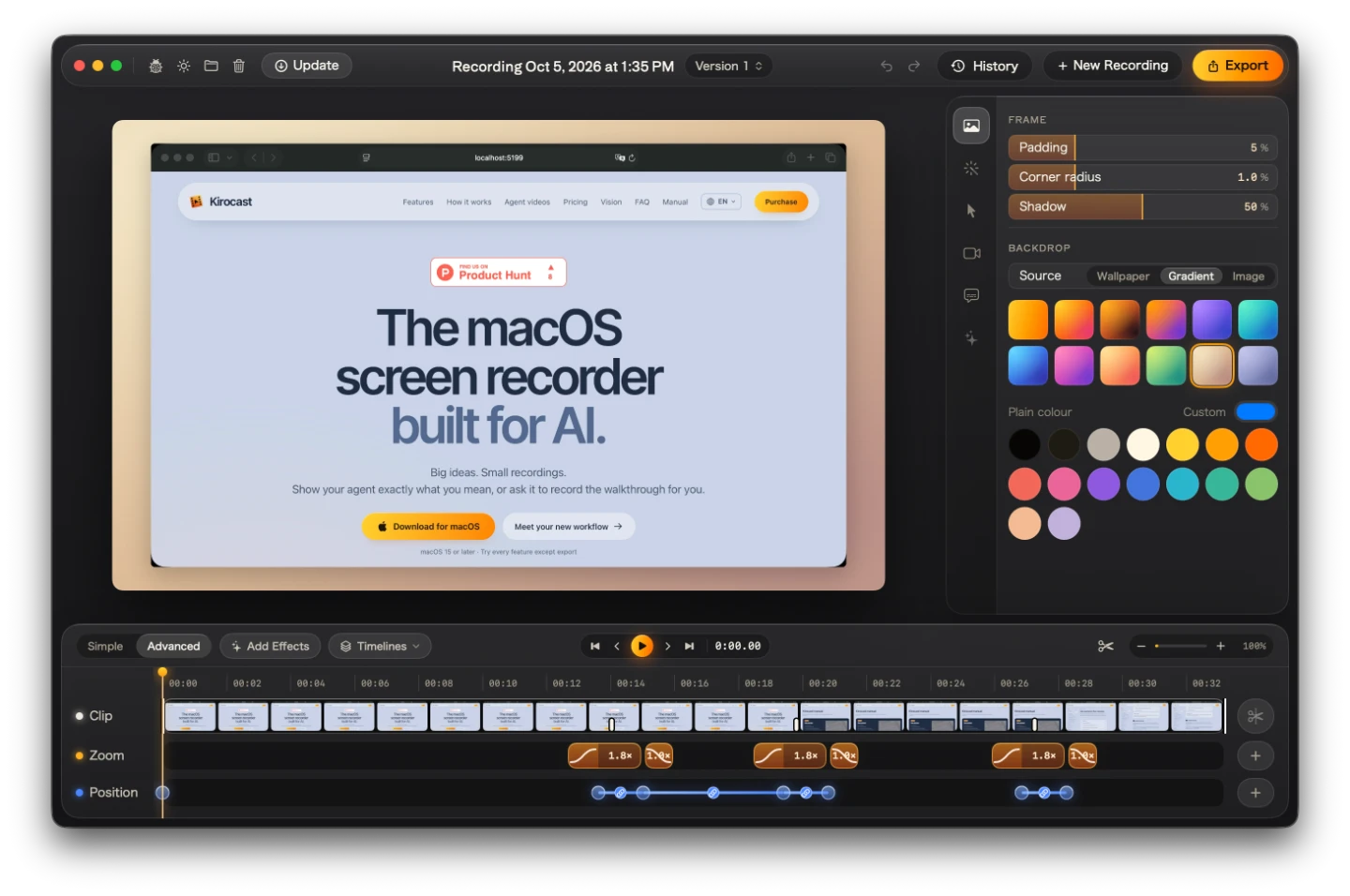
Padding, corners and shadow
| Setting | What it does | Range | Default |
|---|---|---|---|
| Padding | The margin of backdrop around the recording | 0–20% | 5% |
| Corner radius | How round the recording’s corners are, as a share of its shorter side | 0–4% | 1% |
| Shadow | The strength of the shadow the recording casts on the backdrop | 0–100% | 50% |
Each row is its own slider: drag across it to change the value, hold ⌥ for fine steps, or double-click it to type a number.
At 0% padding the recording fills the frame edge to edge. With padding, a zoom near an edge of the screen shows a strip of backdrop around the picture.
Choose a backdrop
Under Backdrop, pick a Source:
- Wallpaper: a wall of gradients, photos and macOS wallpapers, with the photographers credited beneath.
- Gradient: twelve gradients, from Kiro to Moonrise. New recordings start on Dune. Below them, Plain colour offers sixteen colours, and Custom opens the macOS colour picker for any other.
- Image: drop an image on the box, or click Choose Image. The × beside its name takes it away.
Click a swatch and the preview changes at once. The selected swatch wears an amber ring.
In the export
A regular export renders the stage exactly as the preview shows it, and zooms move across the backdrop and shadow with the picture. Each version keeps its own frame and backdrop, so one recording can carry several looks; see Versions.
Export for AI renders the recording on its own, full screen, so a model reads every pixel of your screen.