
The toolbar
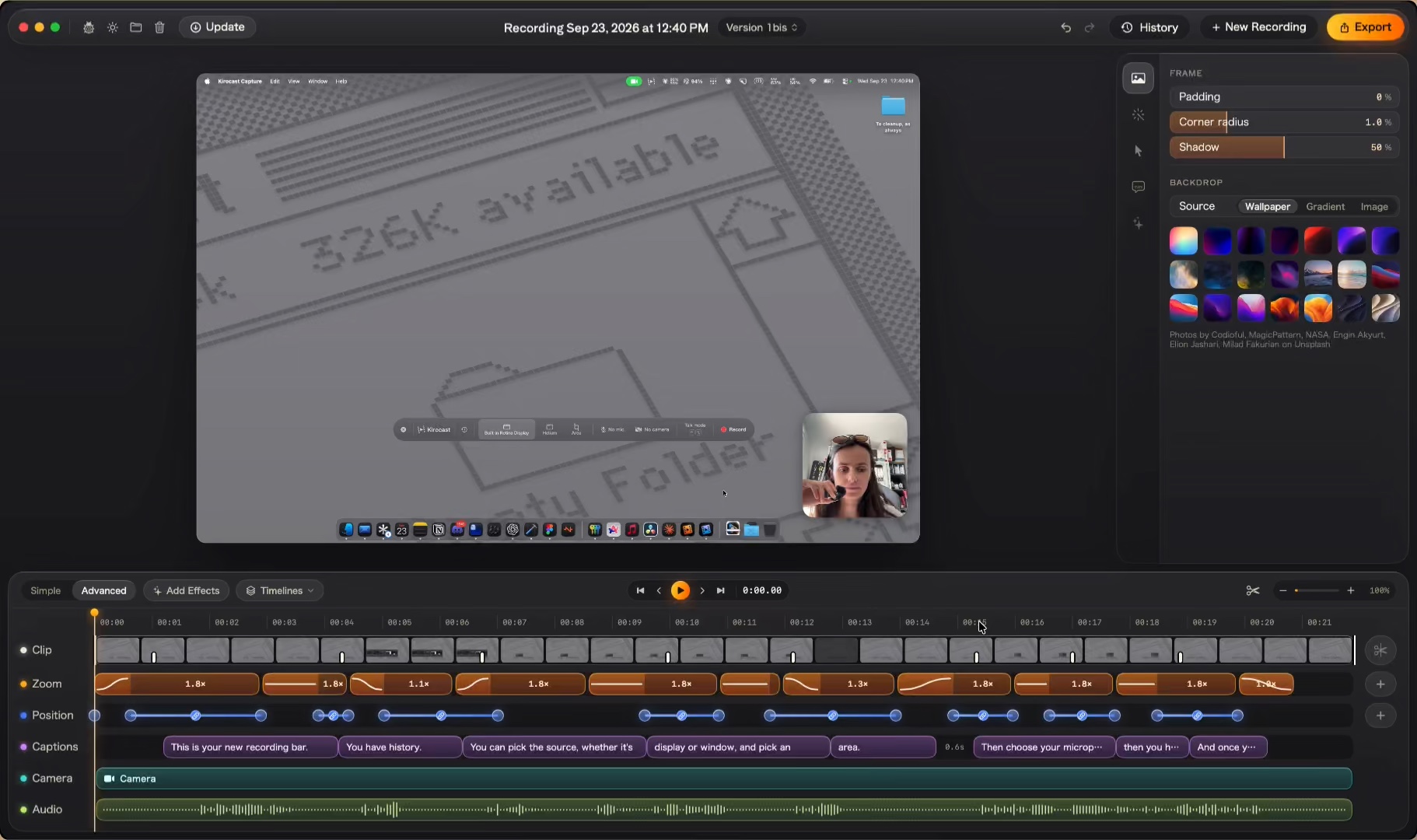
On the left, four small buttons: Report a bug, light or dark mode, Open Kirocast folder in Finder, and Delete project.
In the middle sits the project name. Double-click it to rename the project. Beside it, the version you are editing; its menu holds Duplicate Version and Rename Version…. See Versions.
On the right: Undo and Redo (⌘Z, ⌘⇧Z), History, New Recording and Export.
The preview
The preview shows the frame as it will export: backdrop, padding, zoom and all. Press Space to play and pause.
Move the pointer over the timelines and a dashed playhead follows it, with the preview showing that moment. Your playhead stays where you left it. Click the time ruler to move it.
Select a zoom or a position key and the preview pulls back to the whole picture. A dashed rectangle marks the framing, and a sight marks the point it aims at; drag the sight to re-aim.
The inspector
A rail of tabs runs down the inspector’s left edge:
| Tab | What it sets |
|---|---|
| Frame | Padding, Corner radius, Shadow, and the Backdrop behind the recording |
| Animation | The rules the Auto timeline builds zooms from |
| Effects | The pointer’s style, size and smoothing, click rings and annotation colour. See Cursor |
| Camera | Show camera, the bubble’s Size and its Position |
| Audio | Narration: your microphone, an ElevenLabs voice or the Voice Changer, and the audio tracks heard |
| Captions | Captions generated on your Mac |
Click something on a timeline, such as a clip or a zoom, and the inspector shows that element’s own settings. Done, or Esc, takes you back to the tabs.
The timelines
Each row edits one thing: Clip, Zoom, Position, Captions, Effects, Camera and Audio. Clip and Zoom are always there. Captions, Effects, Camera and Audio appear once they have something in them, and the Timelines menu shows or hides any of them.
The button at the end of each row adds to it at the playhead: a cut on Clip, a zoom on Zoom, a key on Position, a caption on Captions, an effect on Effects.
The strip above the rows holds:
- Simple / Advanced, Add Effects (Mask, Smart Annotation, Tap Tap) and Timelines on the left.
- Playback in the middle: go to start, previous frame, play, next frame, go to end, and the time.
- The scissors for Cut mode (B), and the timeline zoom on the right. Click the percentage, or press ⌘0, to fit the whole take.
Drags on the timeline snap to nearby keys. Hold ⌥ while dragging to place things freely.
Simple and Advanced
Both modes edit the same project with the same features. Simple, the default, keeps the timeline light: the Position row is put away, and each zoom is one block you stretch from either edge. Advanced brings back the Position row and gives each zoom’s transition, the zoom back out included, handles of its own, so you can time it to the frame.
Kirocast remembers your choice for every project you open.