How we redesigned the Kirocast editor
A closer look at the new Kirocast editor, from clearer timeline lanes to the details that make a recording feel finished.
 Gabrielle3 min read
In this article
What the editor is for
A screen recording starts with something you want another person to see. A small interaction. A feature that just shipped. A detail that is easier to show than to explain.
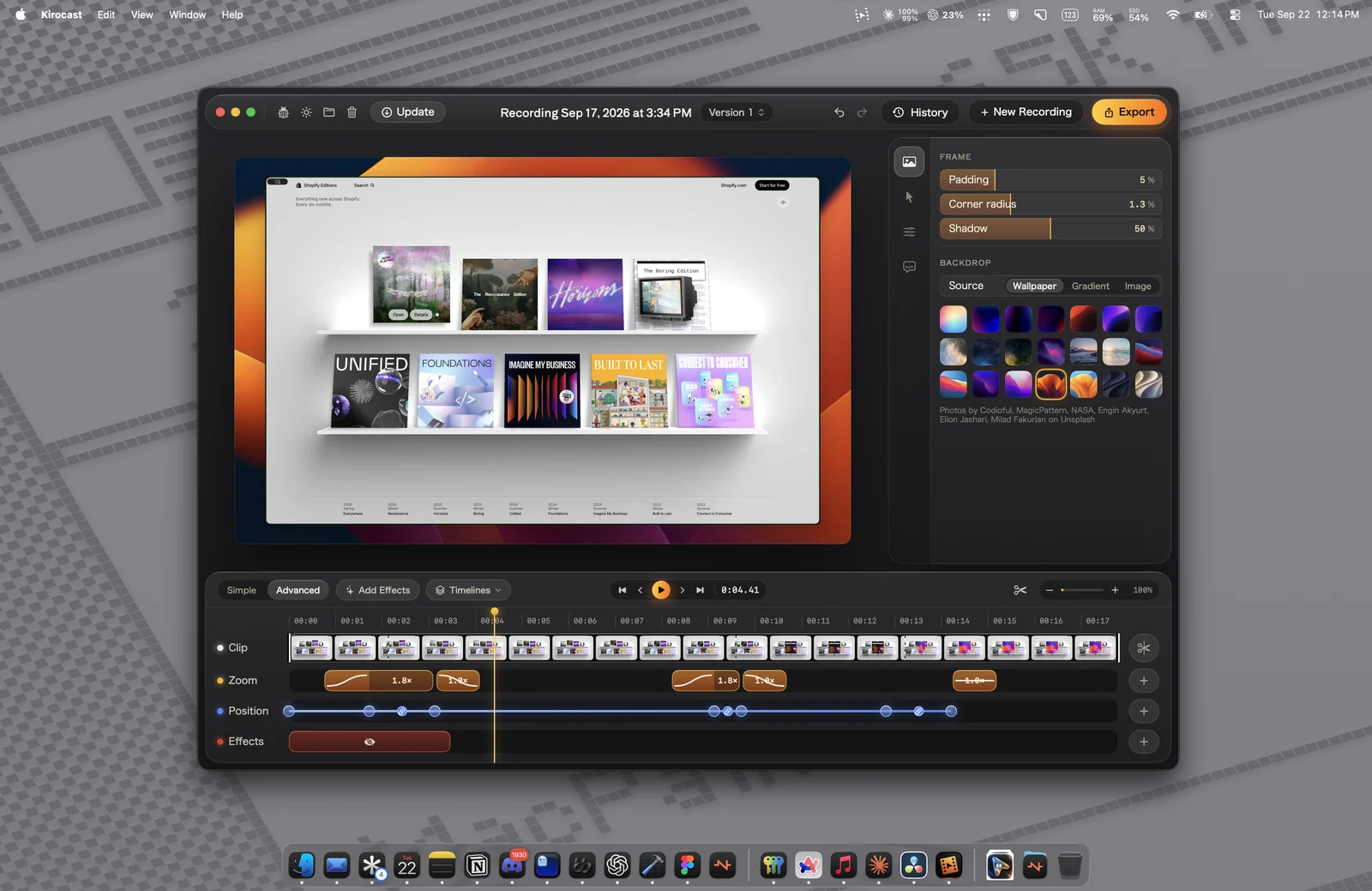
The editor is where that recording becomes a video you can share. In Kirocast 0.11.0, it received a new layout with glass panels, clearer timeline lanes, and redesigned export and settings windows. This is a look at what changed, and how those parts fit together.
Preview, inspector and timeline: one job each
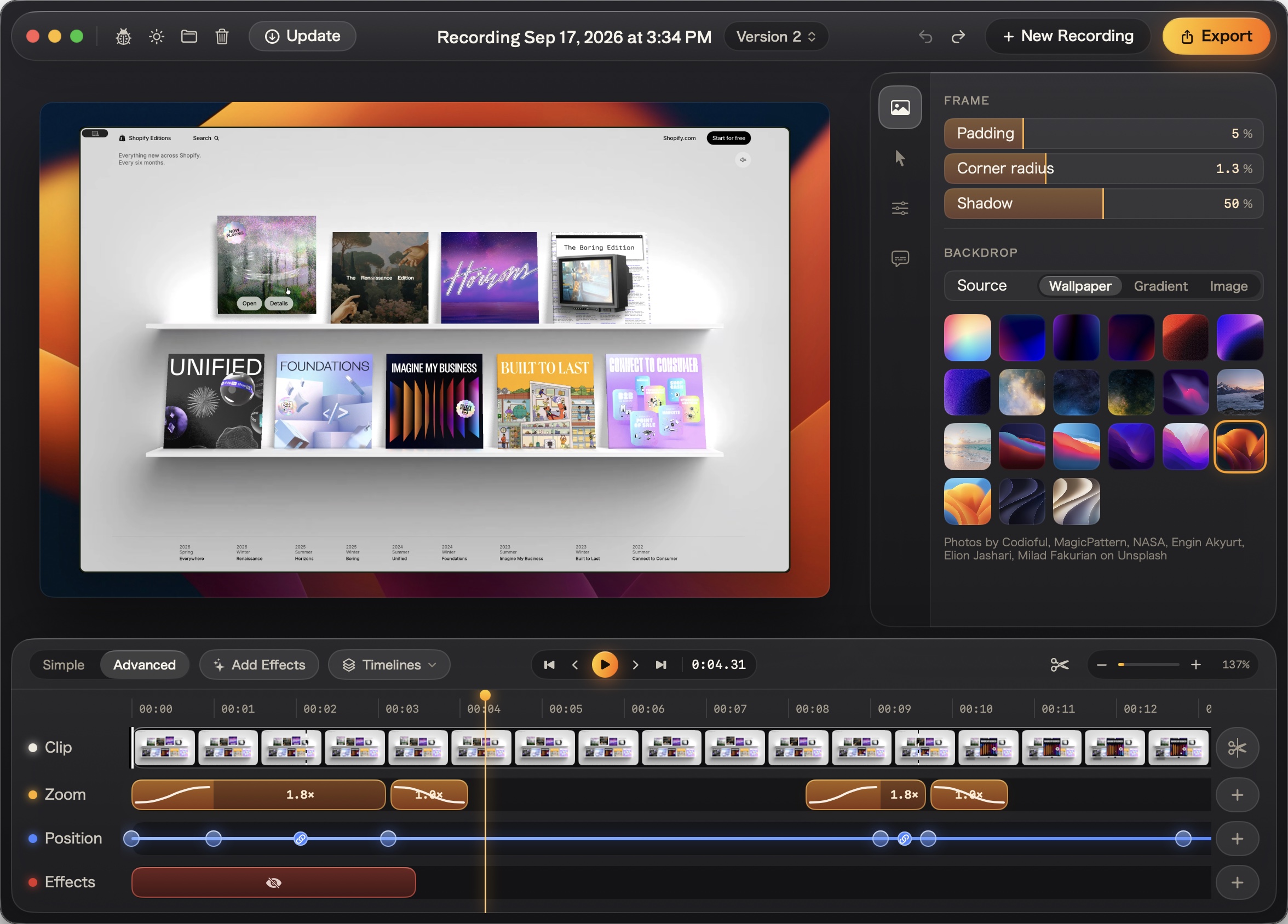
The preview sits at the center of the editor. The inspector holds the settings for the thing you are changing, while the timeline shows when it happens. Each part answers a different question: what does it look like, how is it styled, and where does it belong?
Background, padding, and corner radius live alongside the preview, so you can see their effect on the recording. Automatic zoom brings attention to an interaction. Annotations and captions add context to the moment you want to explain.
Editing captions and zooms on the timeline
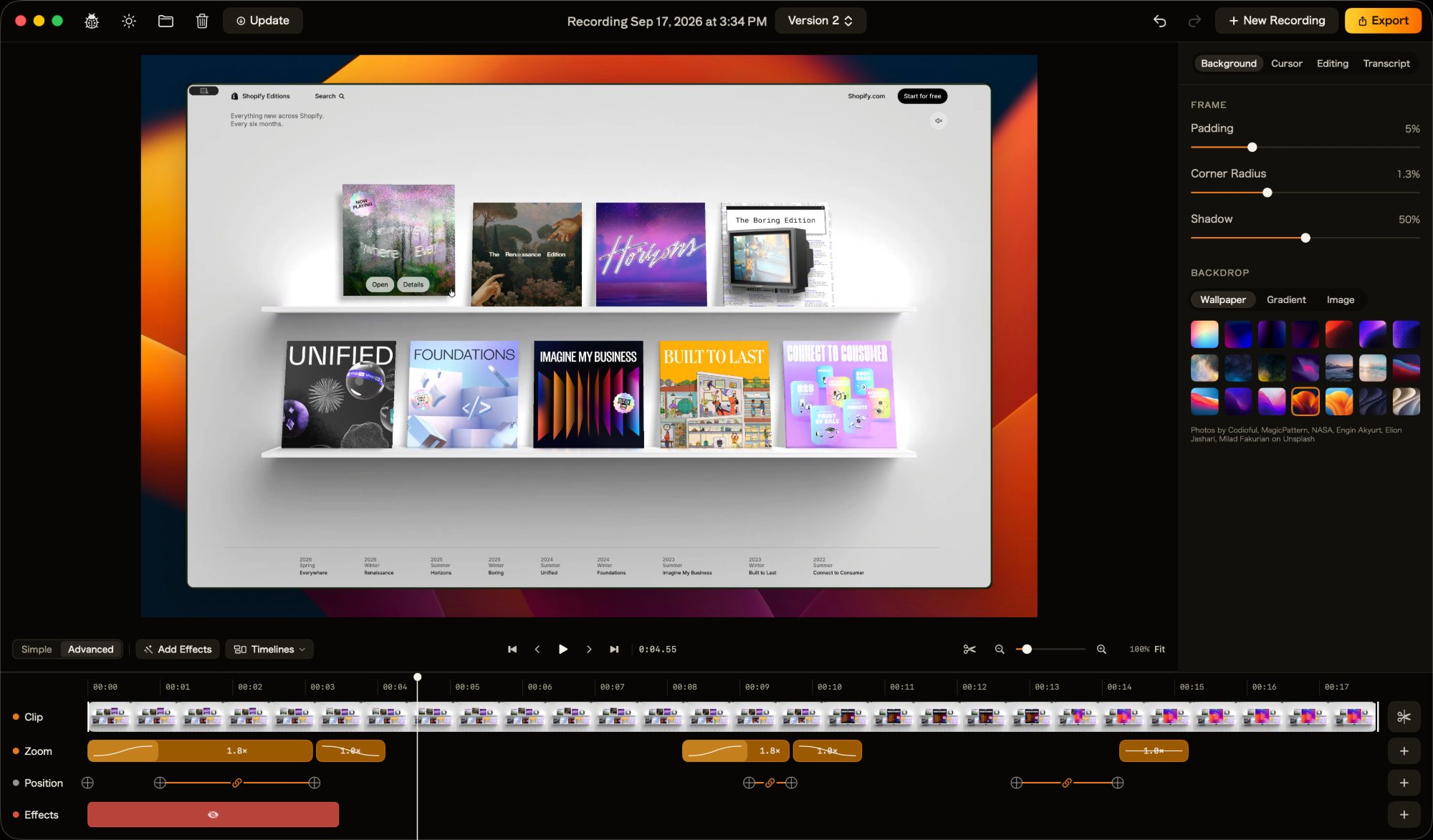
The timeline separates the clip, zoom, position, and effects into their own lanes. Timing becomes visible: you can see where a camera move starts, where an effect ends, and how they line up with the original recording.
Captions can be edited directly on the timeline. You can change their timing, rewrite the text, split or merge them, and add or remove a caption. In 0.12.0, silent recordings gained the same direct approach: click an empty spot on the timeline to place a new caption.
Zoom boundaries can also be dragged to change their timing or merge two zooms into one smooth move. These are small interactions, but they give you a way to refine the video where the action actually happens.
Versions and history
A recording can have more than one version. Each version keeps its own captions, so a change to one edit does not have to become a change to every edit.
History brings past recordings back into reach with search and filters for date and recording type. Recent projects can also be reopened from the recording bar. The work you have already done stays part of the workflow.
What comes next
An editor is made of decisions you meet every time you use it: where a control belongs, what the timeline shows, and how much room the preview gets. This blog will be a place to look more closely at those decisions as Kirocast evolves.
For the complete list of changes, visit the changelog. For the practical steps, the manual walks through recording, editing, versions, and export.